How to Configure Two Factor Authentication for ENTERPRISE
Two Factor Authentication (2FA) is an extra layer of security to ensure that the people accessing ENTERPRISE are who they say they are. This is enforced by prompting you to provide additional information after successfully logging in with your ENTERPRISE Username and Password.
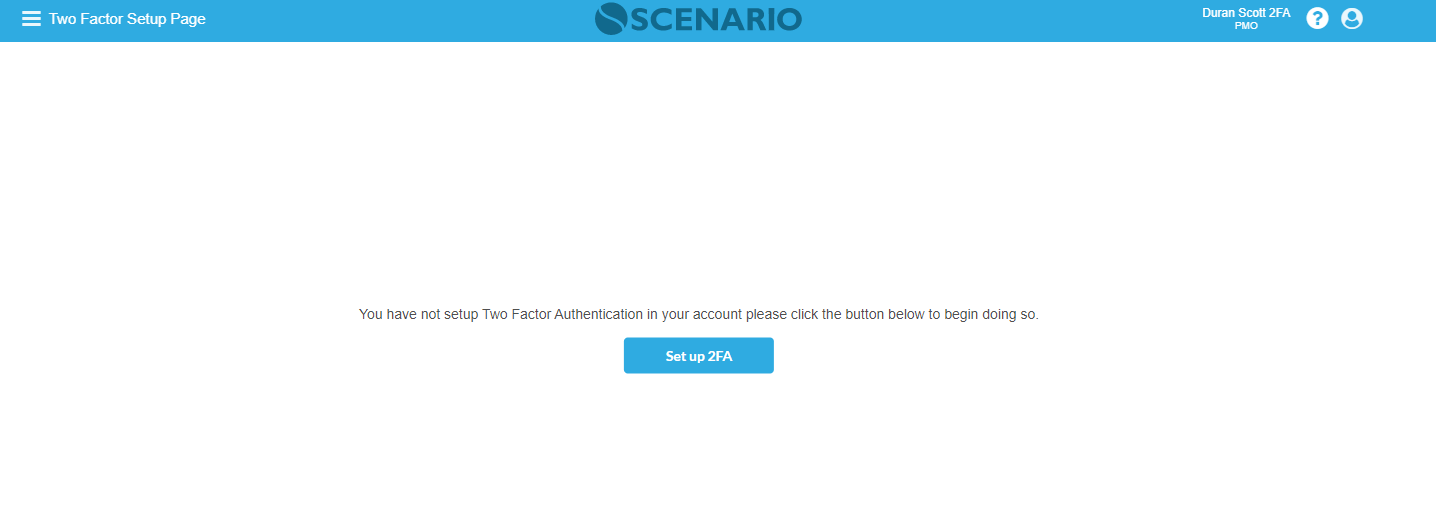
Once you have been enabled for 2FA you will be presented with the 'Set up 2FA' screen upon your next login.
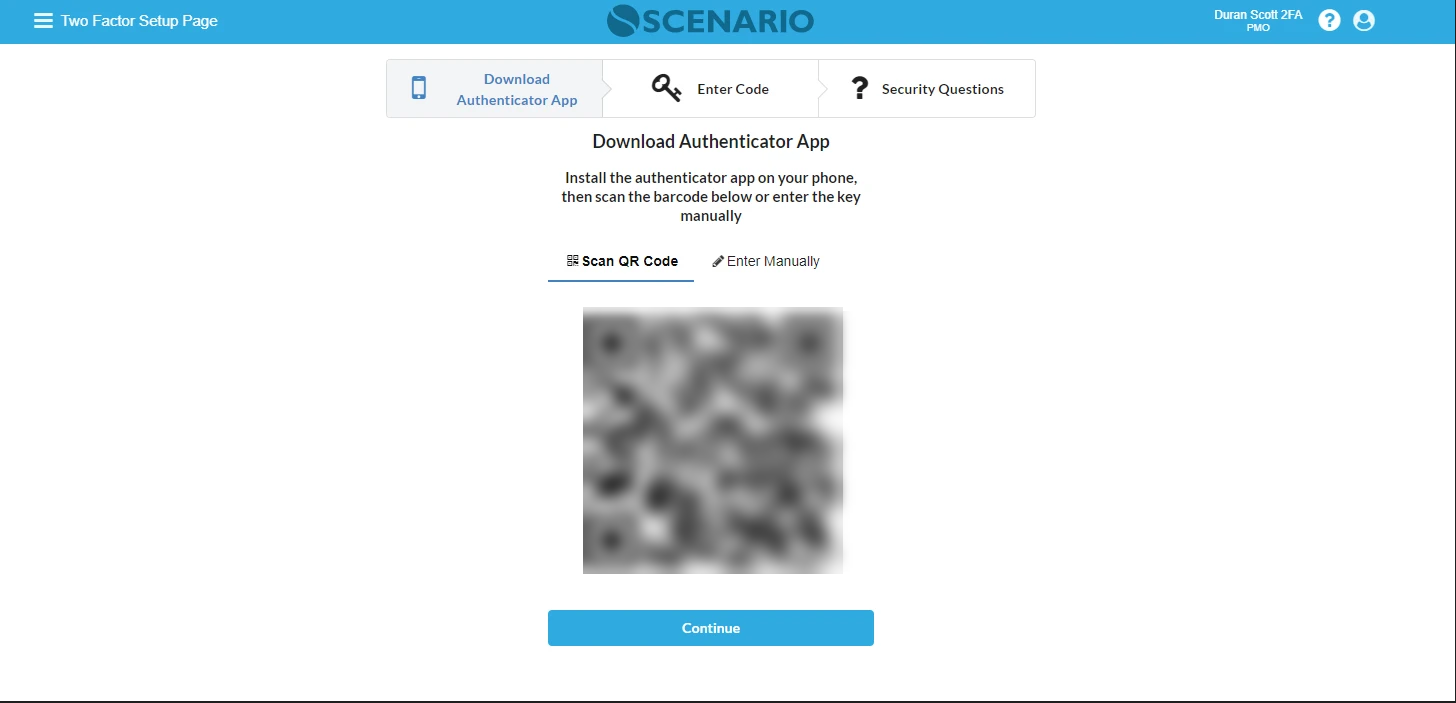
If you don't already have an Authenticator application installed on your smartphone, you will need to download one now before continuing. We recommend using the Google or Microsoft Authenticator application.
Google - https://support.google.com/accounts/answer/1066447
Microsoft - https://www.microsoft.com/en-us/p/authenticator/9nblggh08h54
You can now open up your authenticator app and add a new authenticator by scanning the QR code presented on your screen.
If you are having difficulties scanning the QR code you have the option to manually enter the code, just click on 'Enter Manually' and input the 'Account name' and 'Key' on your authenticator application.
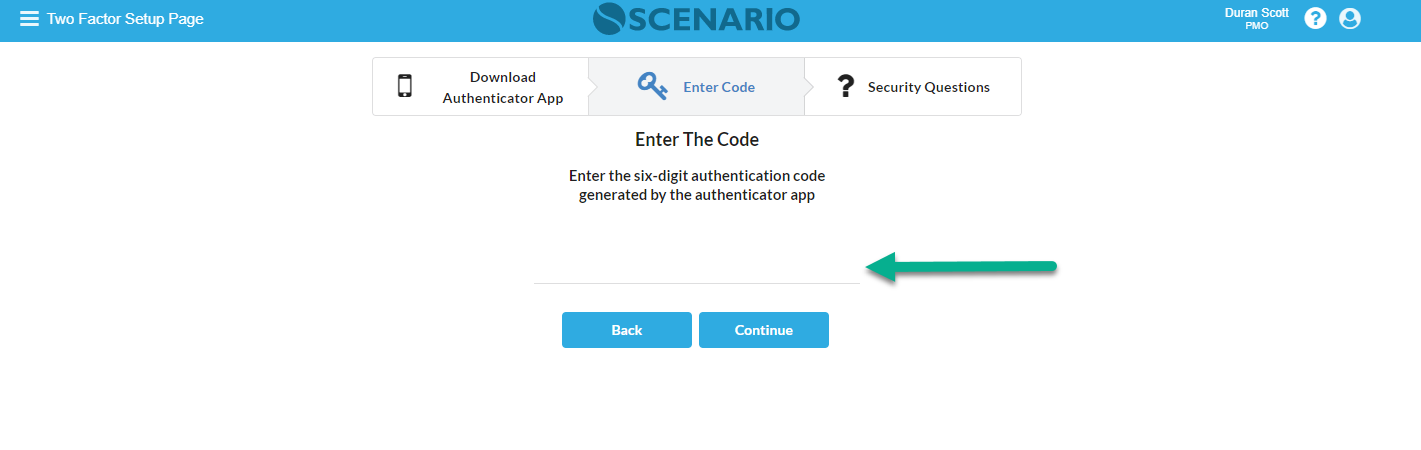
Once you have finished setting up your authenticator application will click next, you will now be prompted to enter your authentication code displayed on your authenticator application before continuing.
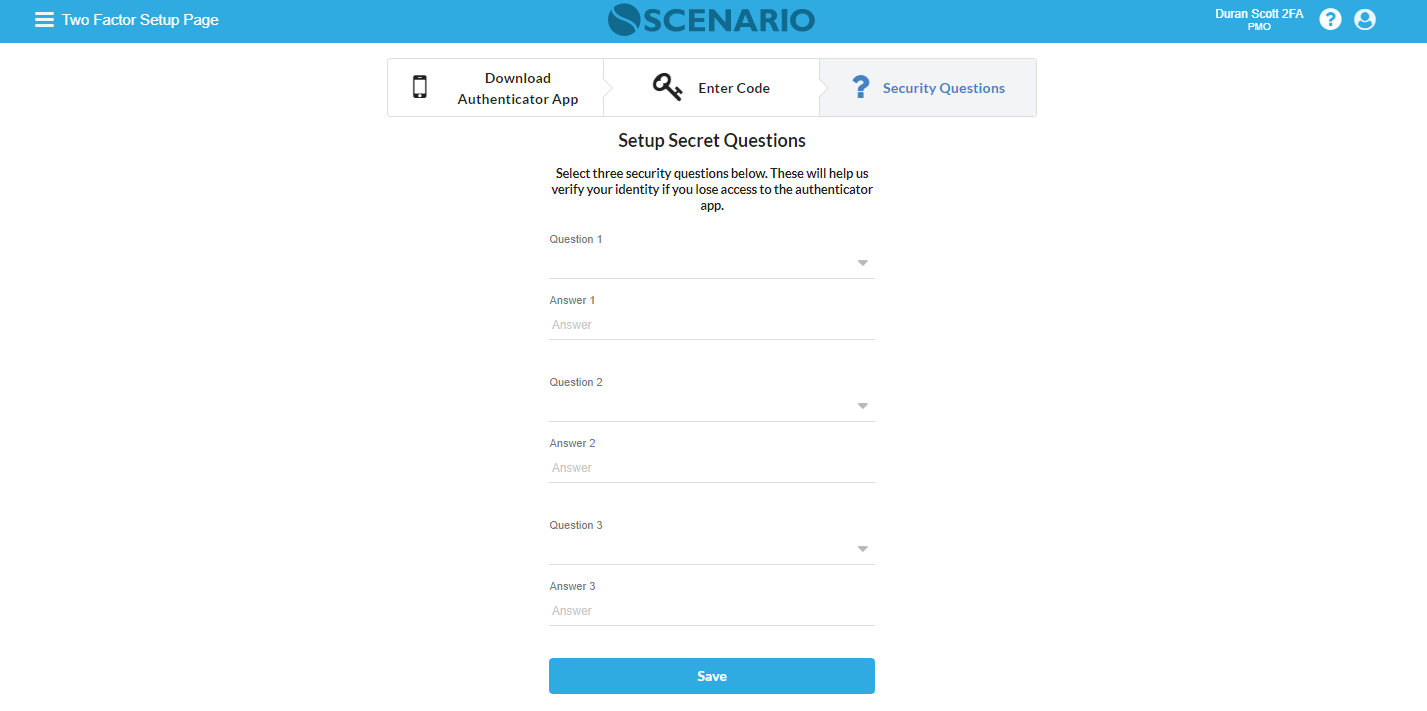
Finally, you will need to complete three questions and answers, this will assist you in retrieving access to your account if you lose access to your authenticator.
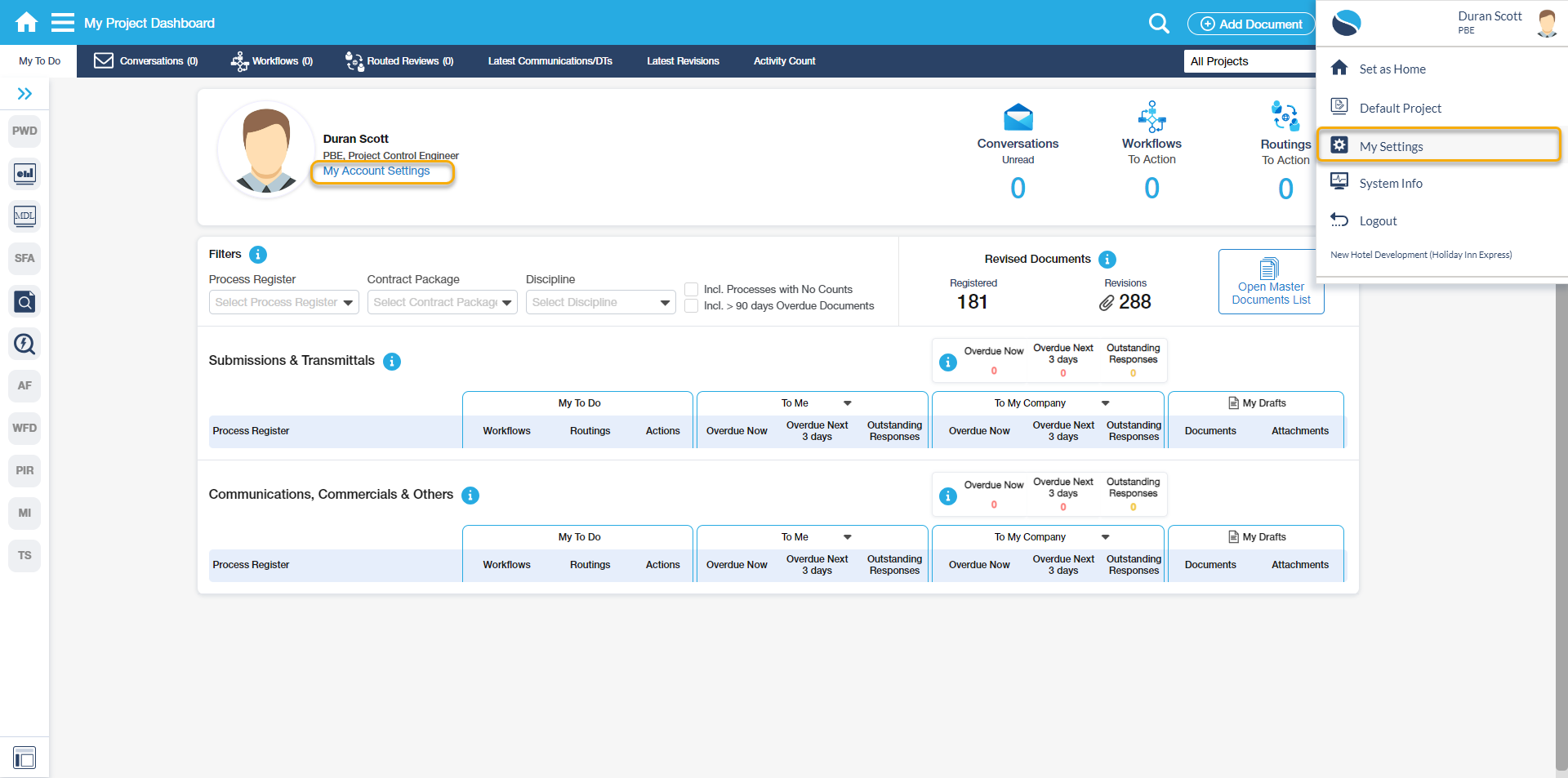
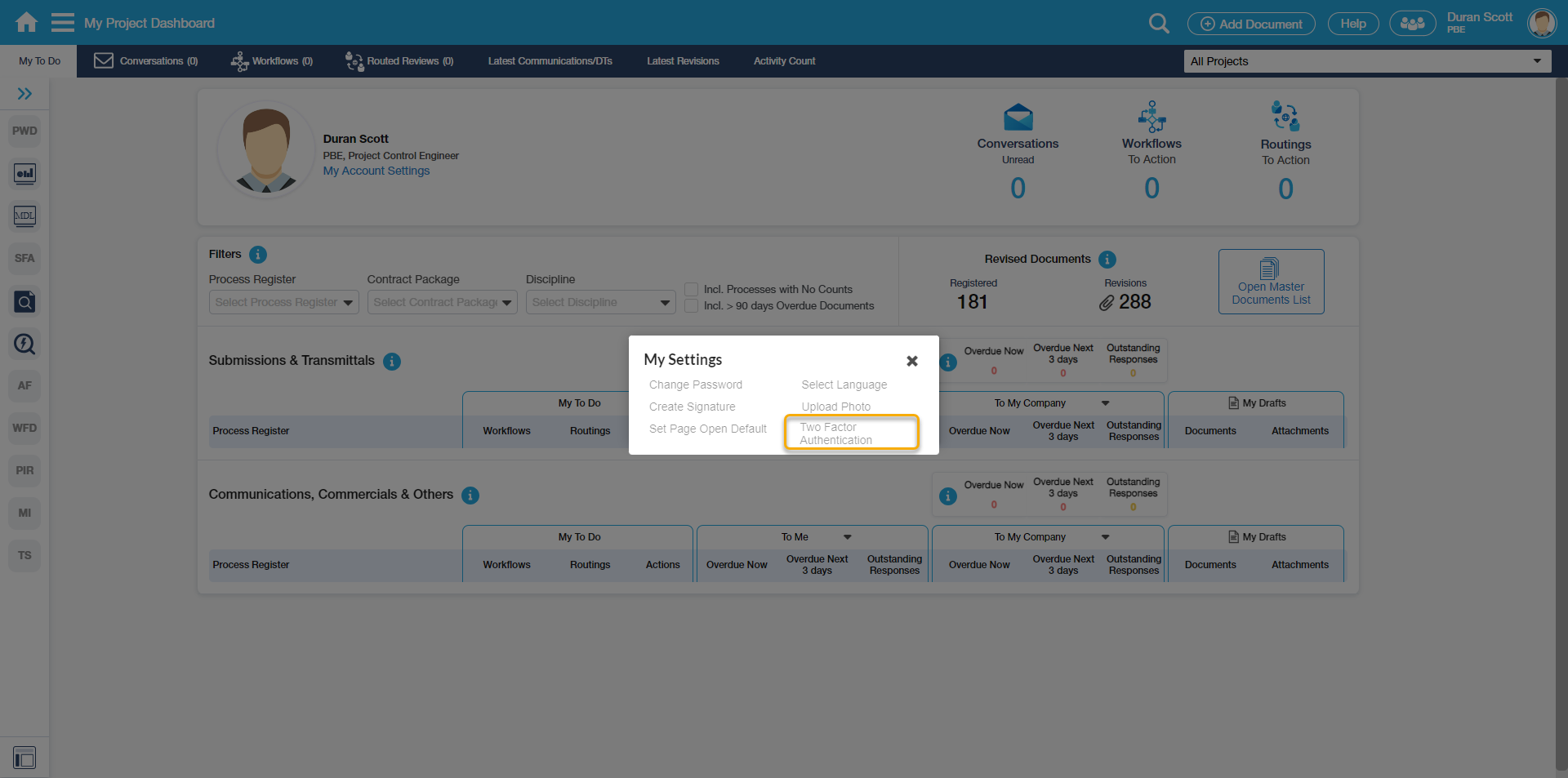
If you need to set-up 2FA on a new device you can access the 'Two Factor Authentication' screen by going into 'My Settings' from the right-hand menu or 'My Account Settings' and completing the above instruction again.