Login Screen
Contents
Overview
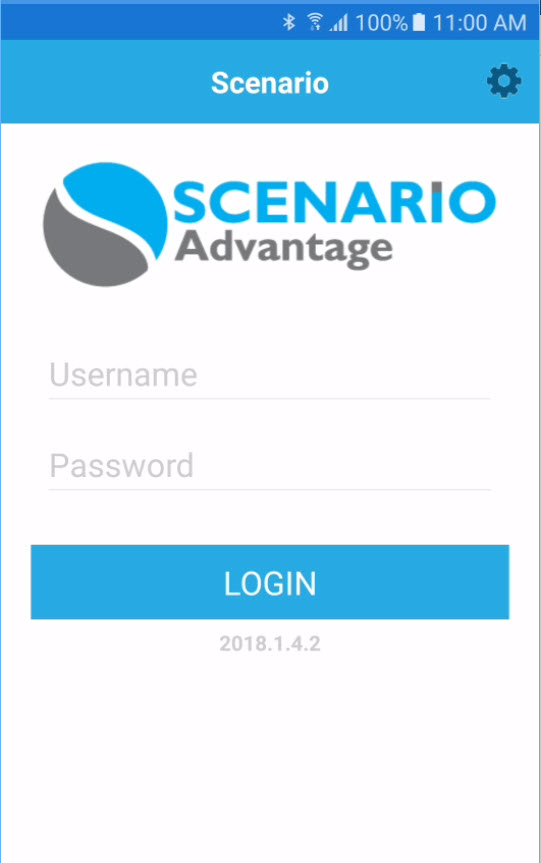
To use Scenario Enterprise Mobile app, a User will need to login by entering their unique User ID and Password. Moreover, Server connection have to be established by configuring in the Settings.
Screen Explanation
Field | Description |
|---|---|
User Name | The User ID the User have been issued with to log in. |
Password | The designated (or set by the User) Password for the system he/she is accessing via the URL |
| Note - both User Name and Password are case insensitive; therefore, the User Name and/or password can be entered either in uppercase or in lowercase. | |
How Do I?
How Do I Login to SAM - Enterprise?
1. Connect to the URL path for the Enterprise Mobile Application |
|---|
|
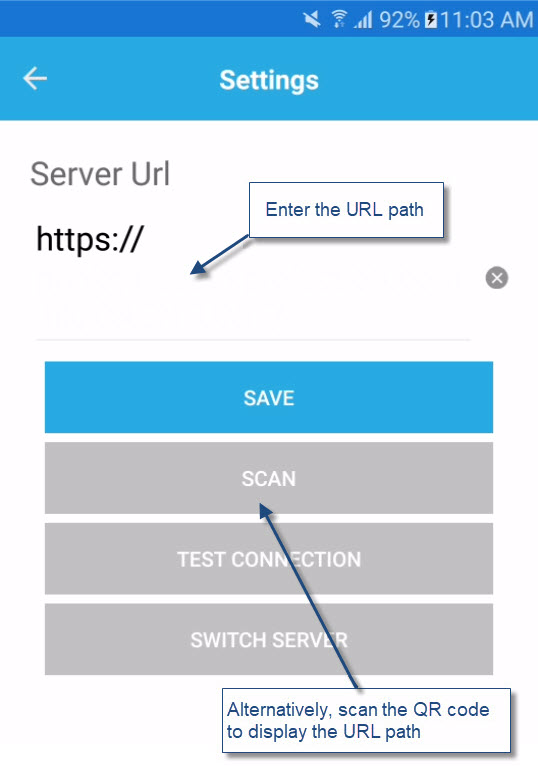
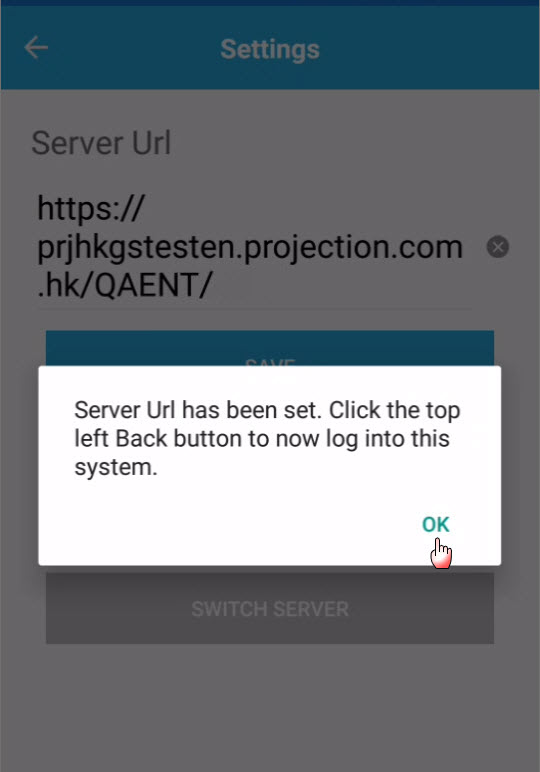
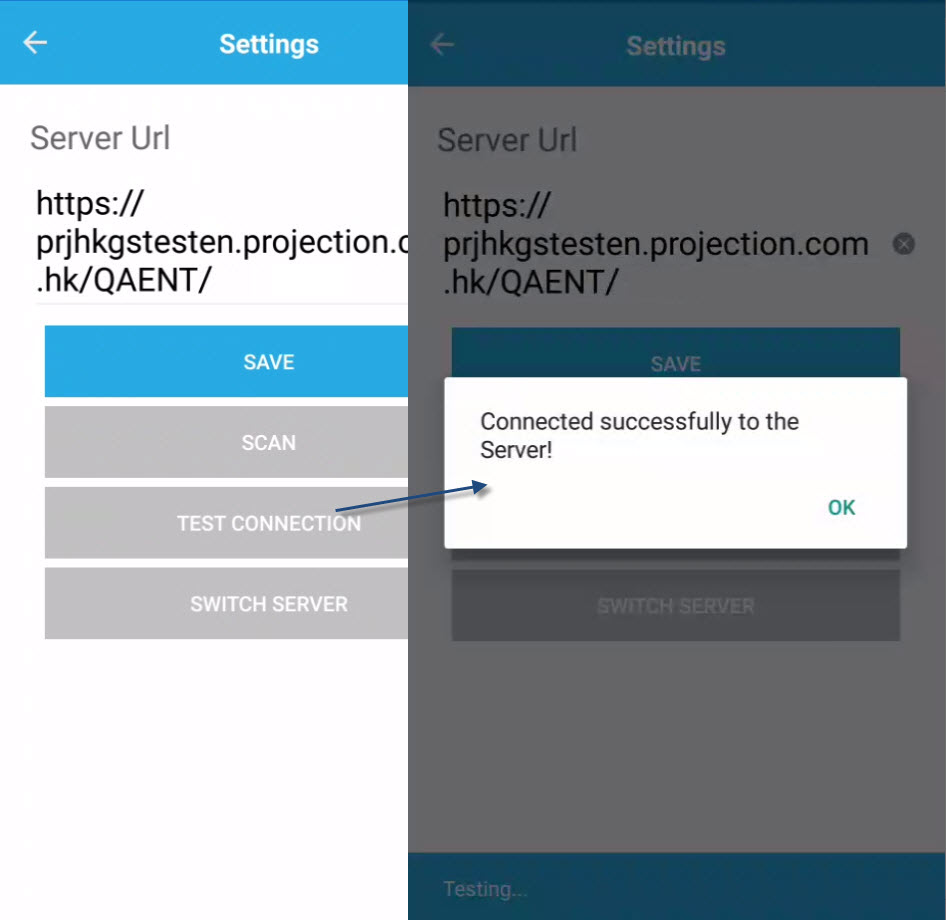
Open the iOS or Android browser and enter the URL path for the application. Alternatively, you can scan the provided QR Code to automatically display the URL path. Click OK on the Server URL pop-up message. |
|
| Press Test Connection to ensure that the mobile app is connected successfully to the server. |
2. Enter Username and Password |
|---|
|
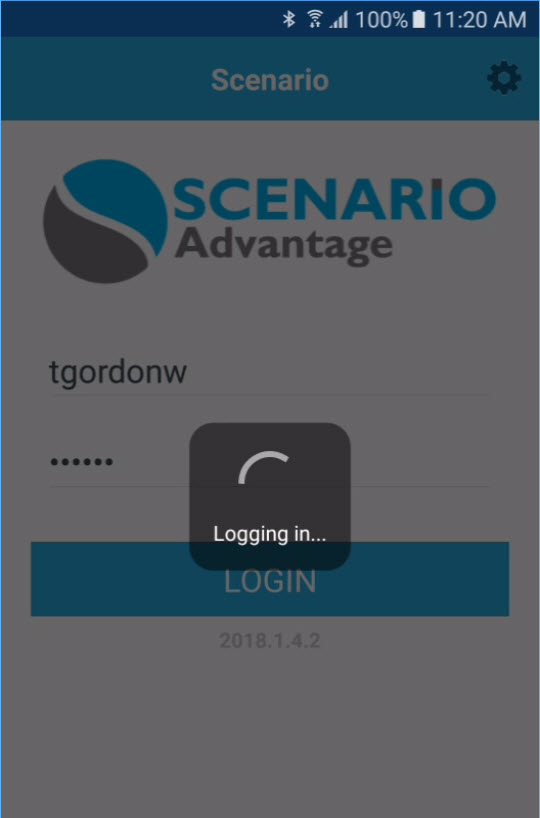
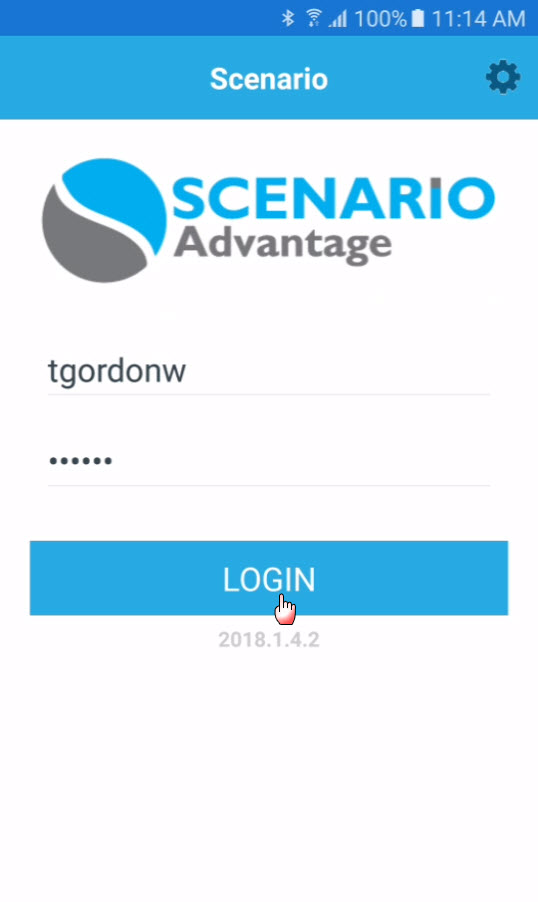
On the field space for the Username, enter the User Login ID. Move to the Password field, or select the field space for the Password to place focus in the field; then enter the assigned Password. Once all entries are complete, click the Login button. Upon a successful login (the Username & Password is accepted), the User will be taken to the Home Menu screen. |
3. If Login Failed |
|---|
|
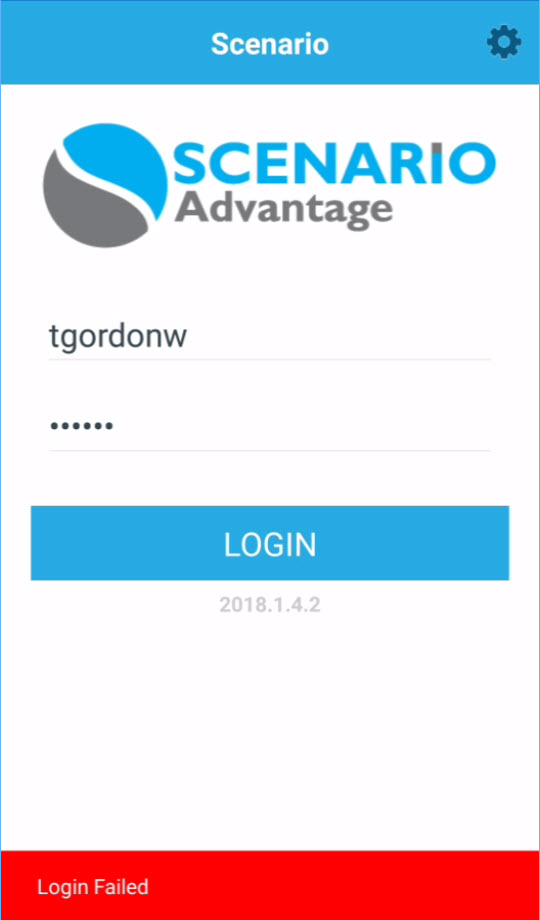
Should the Username or Password be incorrect, the system will notify you that the Login has failed. The 'Login Failed' information will appear on the left bottom side of the screen. Check the Username & Password, as well as the URL to ensure its correctness. Upon re-enter of login details and login is still unsuccessful, you must then contact your IT Department. |
Examples of Use
Logging in stage