
Right Hand Menu
Contents
Overview
The 'Right-hand' drop-down menu allows the user to manage access to Projects, set default, and other information as a login User of the system. This is available on every Scenario Enterprise page being run to display a consistent set of Menu options to the User from anywhere in the system.
It allows the user to perform the following tasks:
- Set a selected screen as 'Home Page'
- Set Default Project/Last Project used
- Set the following in My Settings:
- Change Password
- Set Language
- Create Signature
- Upload Photo
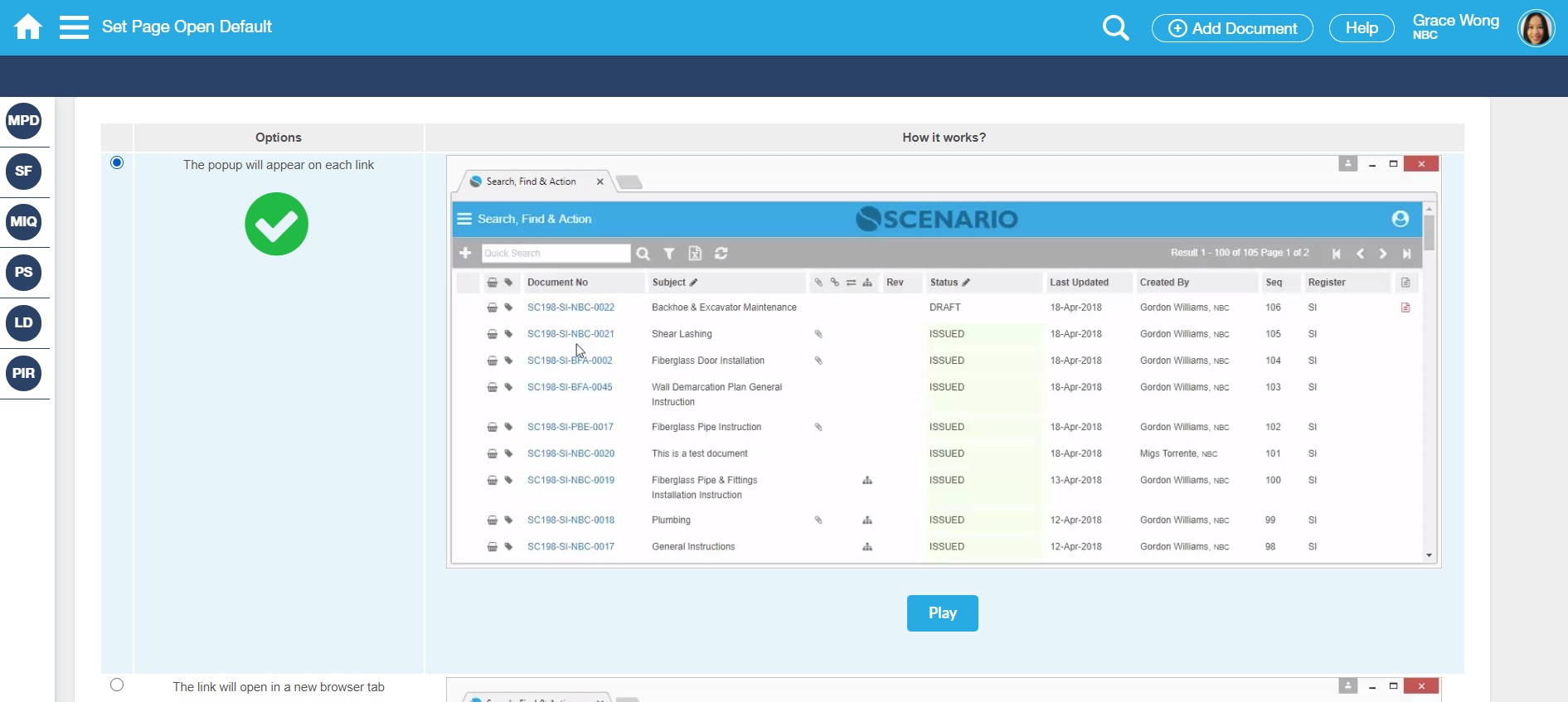
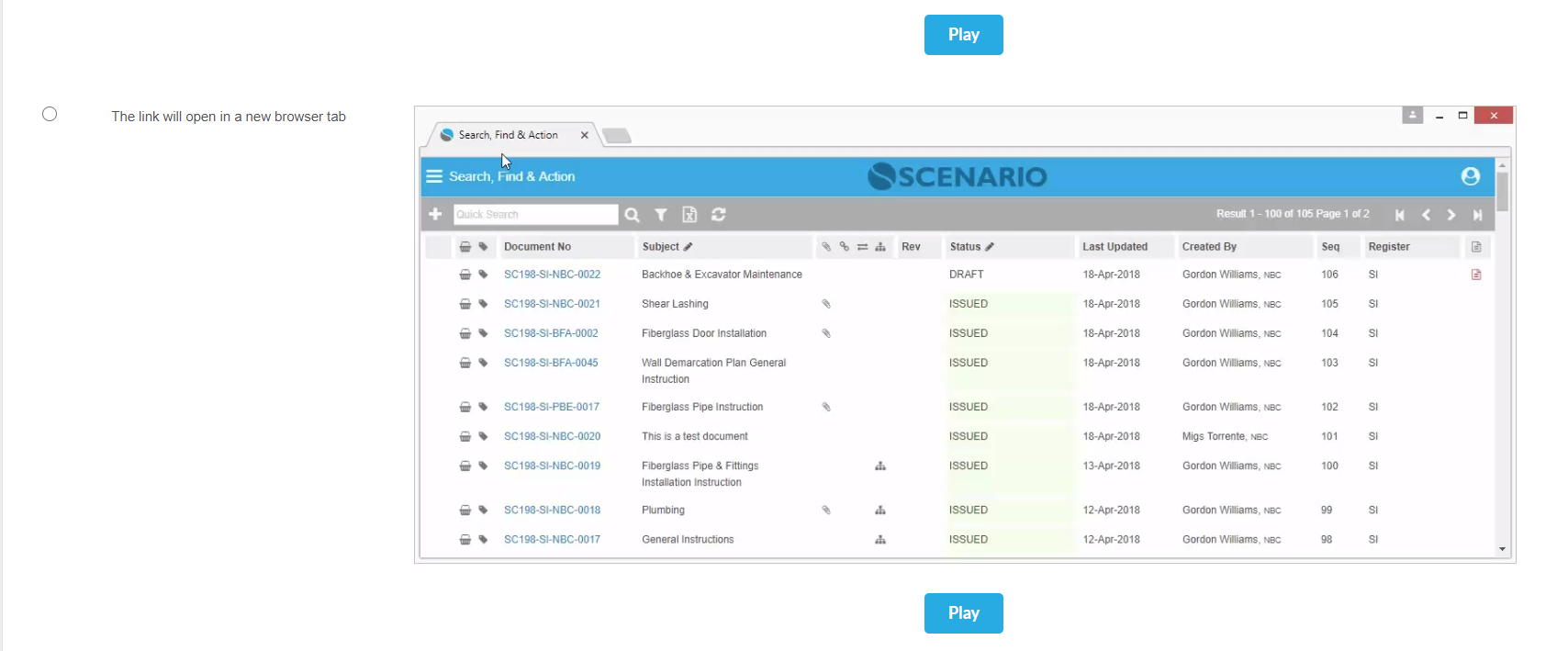
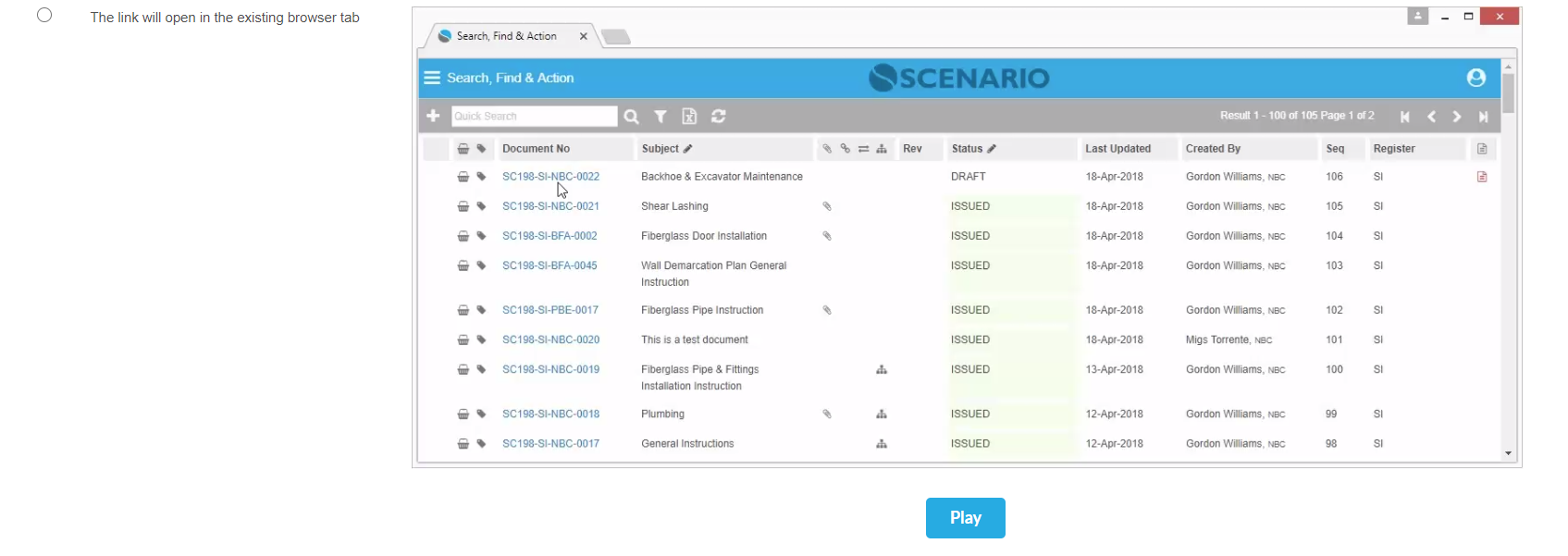
- Set Page Open Default
Note - for newly created Users, the default will be 'The link will open in a new Browser tab'
-Create My User Lists
- View System Information such as release upgrade
Screen Explanation
Right Hand Menu is on the top right-hand side of the screen. This menu expands vertically listing the information and options available.
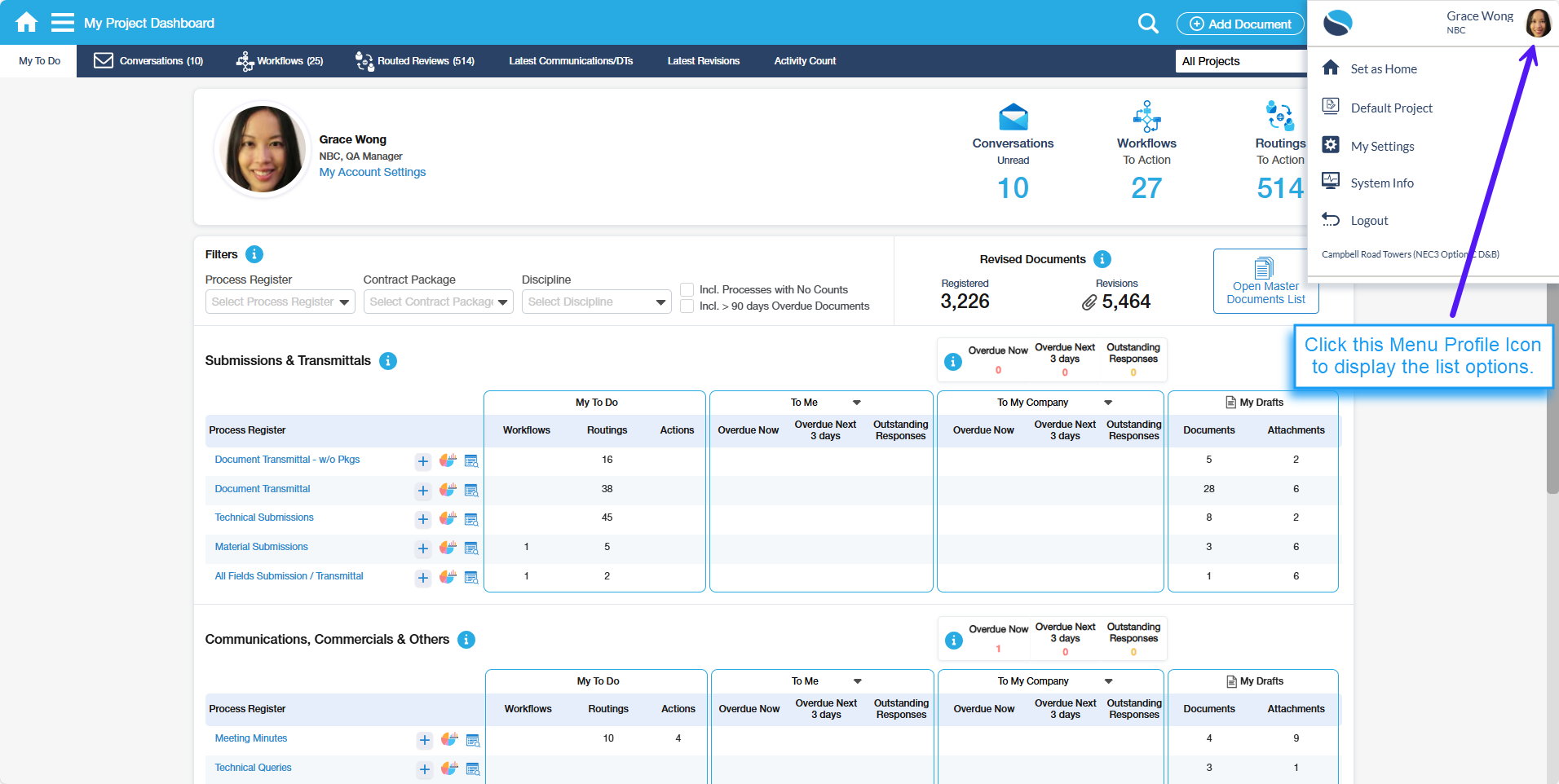
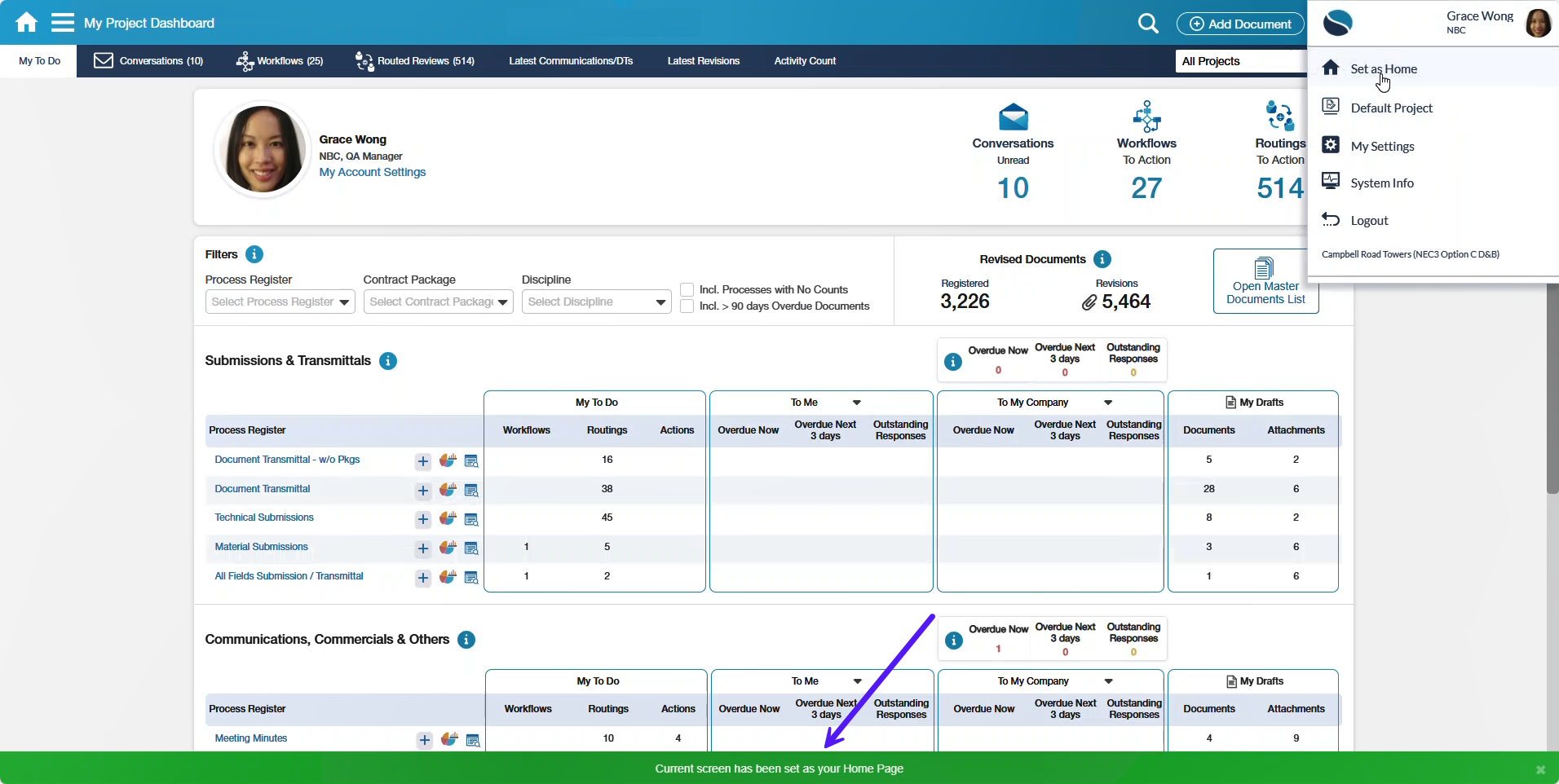
Set as Home provides the ability to set the User's opted page/screen to be their 'Home Page'. The Home Page will take effect as soon as the User logs in again into the system.
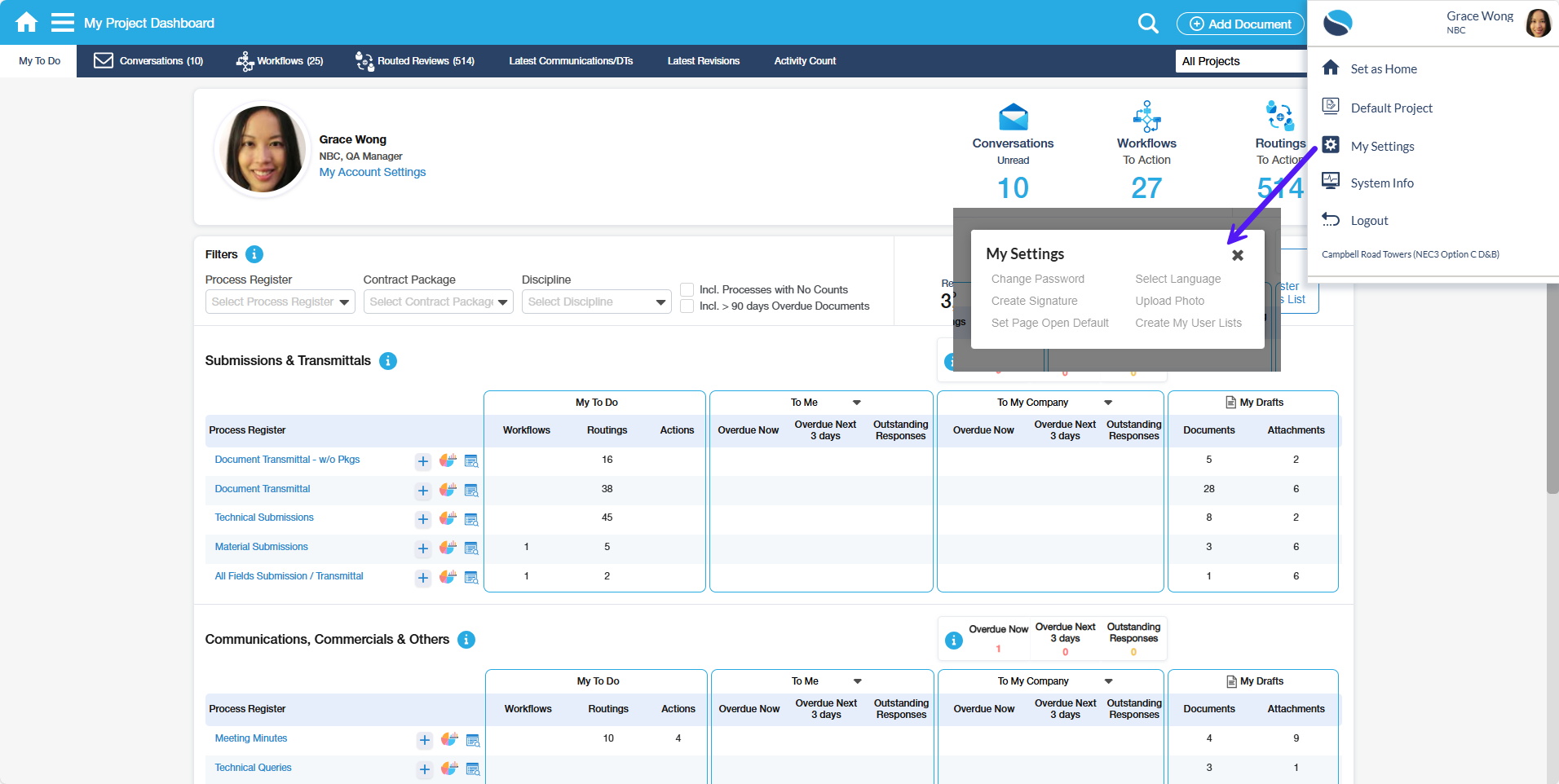
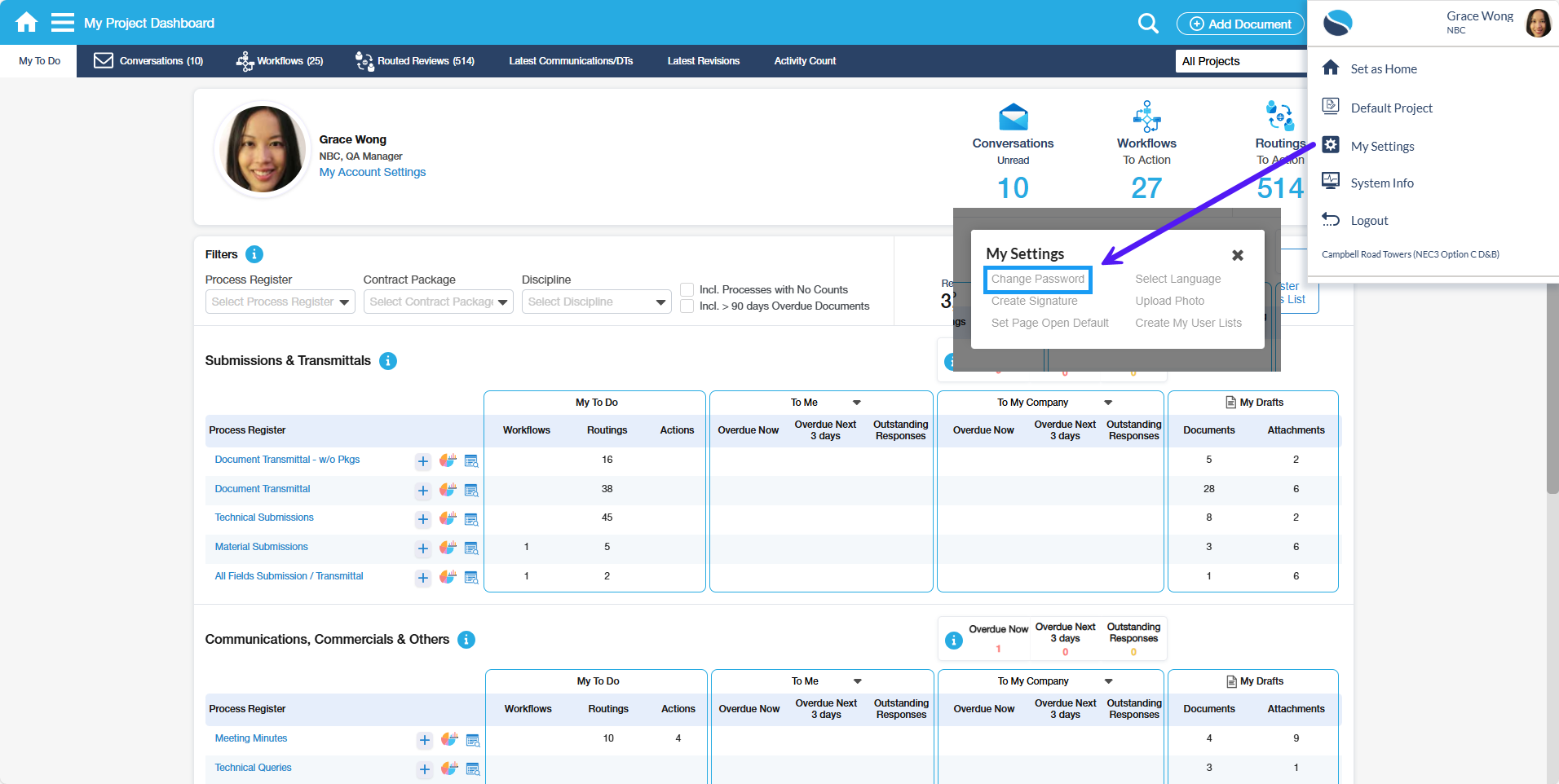
My Settings provides several selections such as Change Password, Create Signature, Select Language, Upload Photo and Set Page Open Default.
Field | Description |
|---|---|
| Company Logo | Displays the logo of the System Owner Company. |
| User Photo and Information | Displays the logged-in User's photo and Name. |
Set Home Menu | When working at lower levels, selecting this option will take the User to My Menu. |
| Default Project | This allows you as the logged-in User to select and set the default Project. |
| Select Menu | This provides you with a pop-up screen where a Menu (Role-Based) can be selected and applied. This is only applicable when you have access to multiple Role-Based Menus. |
| My Settings | Selecting this option will open a pop-up screen, enabling you to access the following selections:
|
| System Info | This screen provides you with the System information regarding the System's Version, the Database name, Database Version, Server & Client Date/Time and Service DLL. It also provides information about applied Upgrader Scripts and what Configurations have been carried out. (Not available to all Users.) |
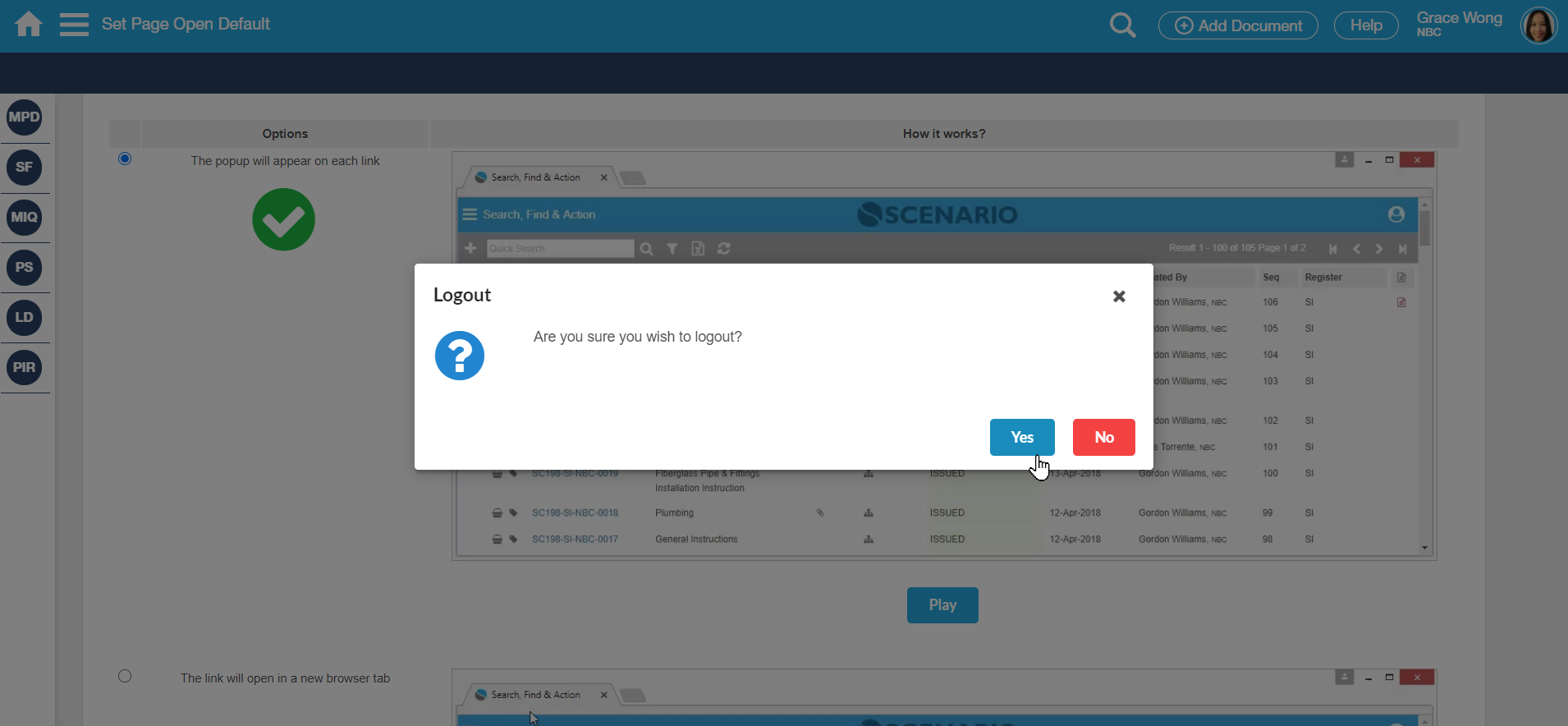
| Logout | The logout menu button allows you to logout from the system. Once selected, a confirmation message to logout is displayed. Click 'Yes' to log out and 'No' to return to the home page. |
| User's selected Default Project | Displays the selected default Project of the logged-in User. |
How Do I?
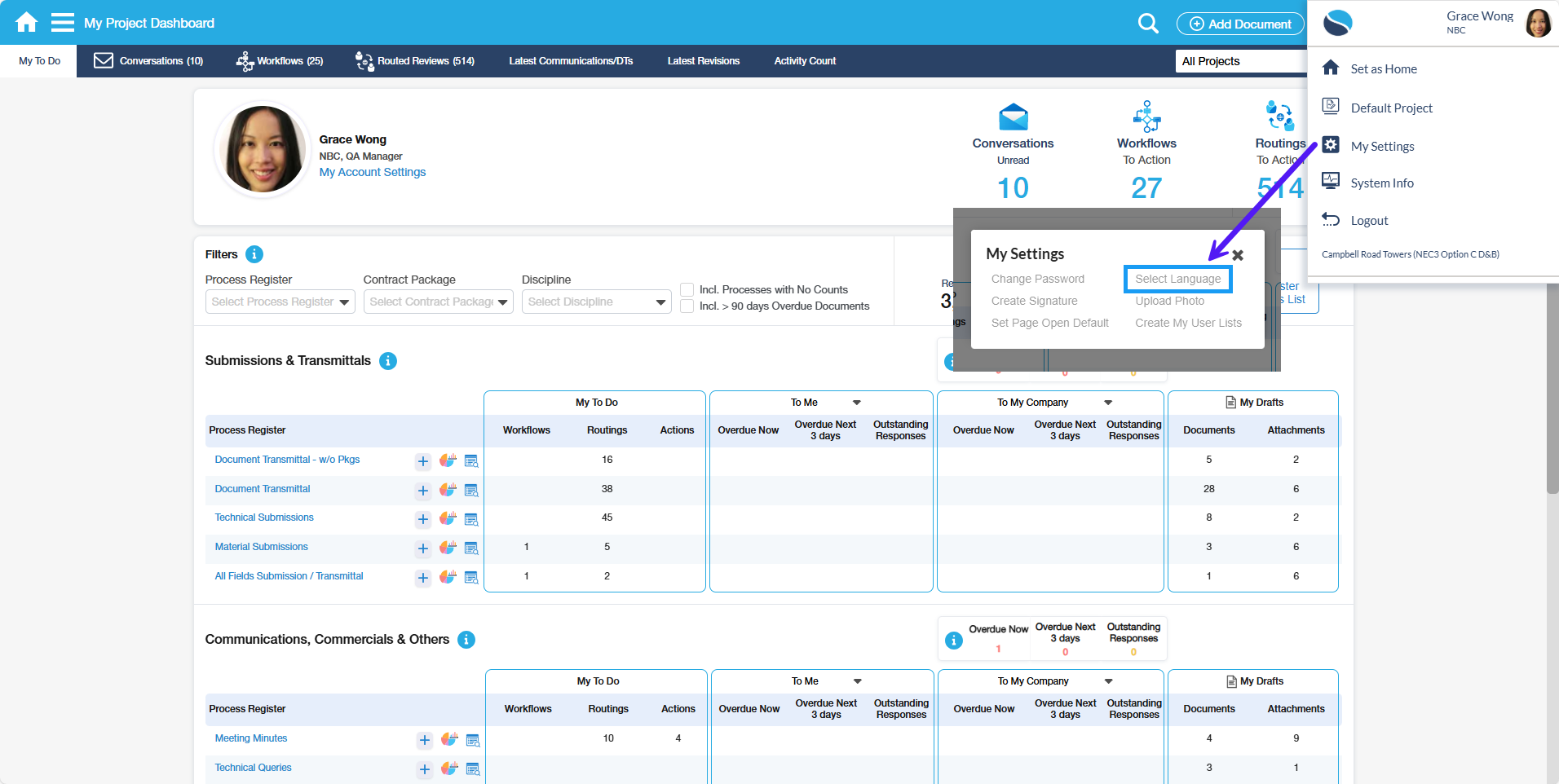
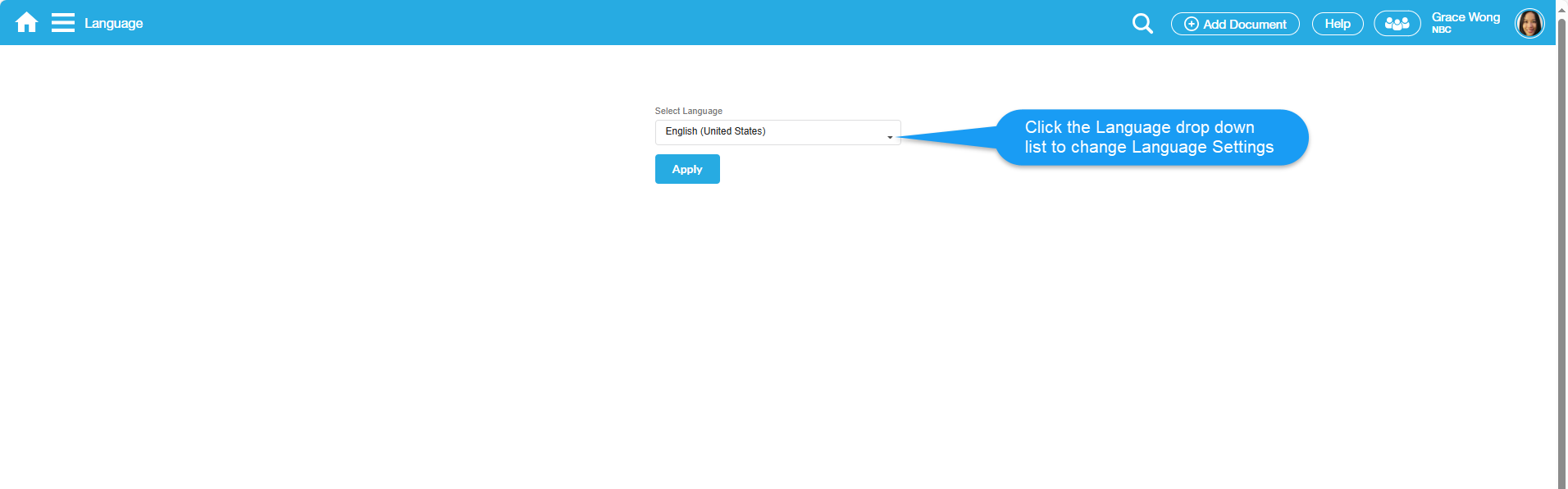
How Do I Configure Language to be used via My Settings?
1. Select the Language to be used. |
|---|
|
|
How Do I Change Password via My Settings?
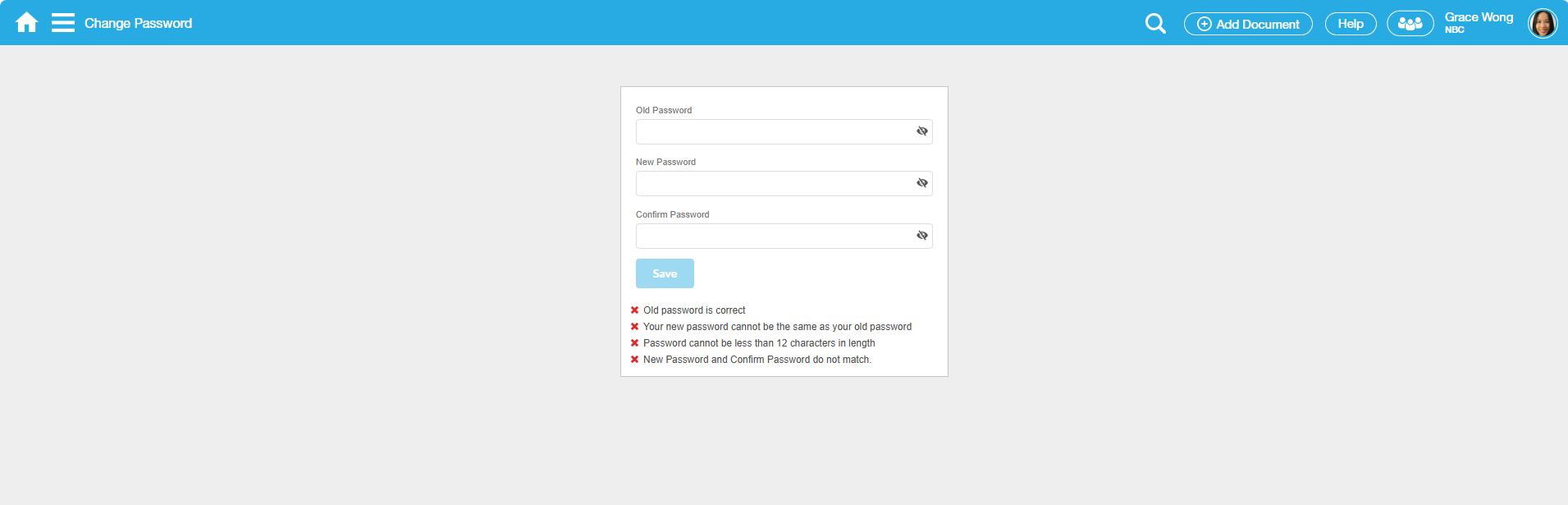
1. Change a Password |
|---|
|
|
4. Save the changes. |
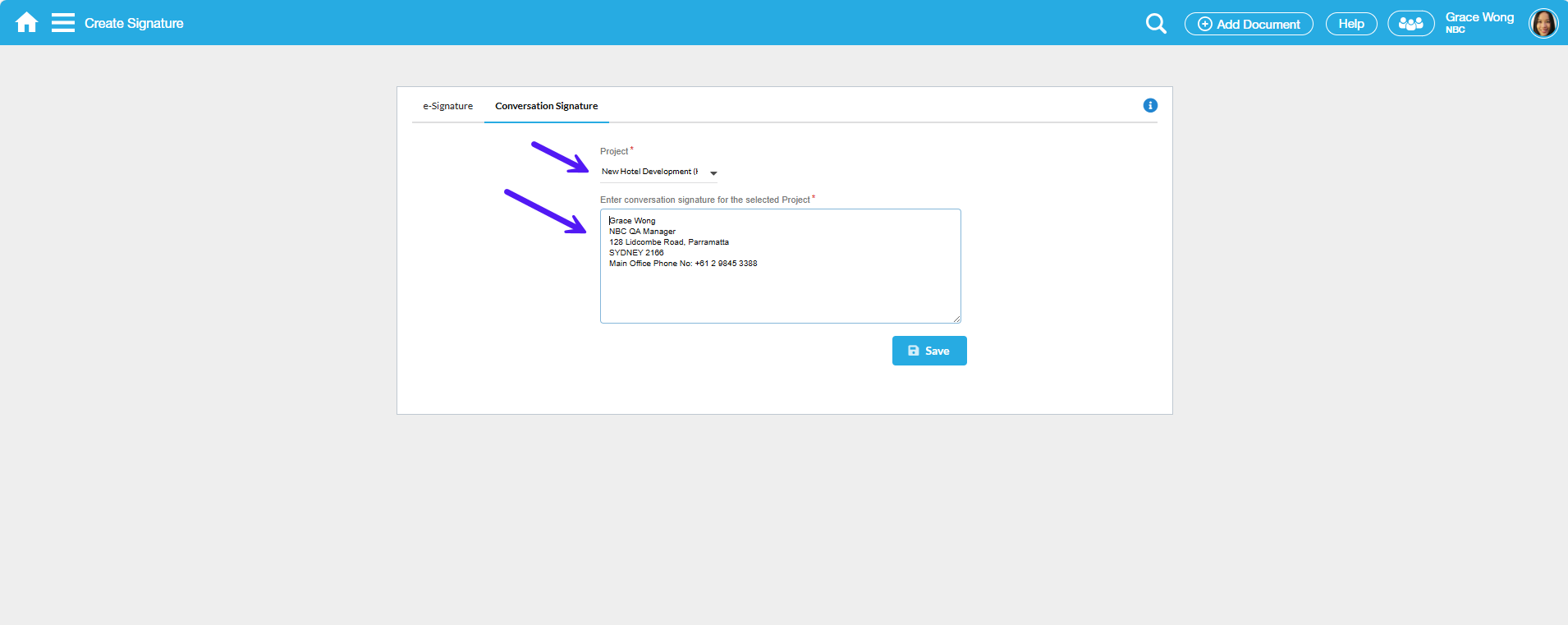
How Do I Set Signature via My Settings?
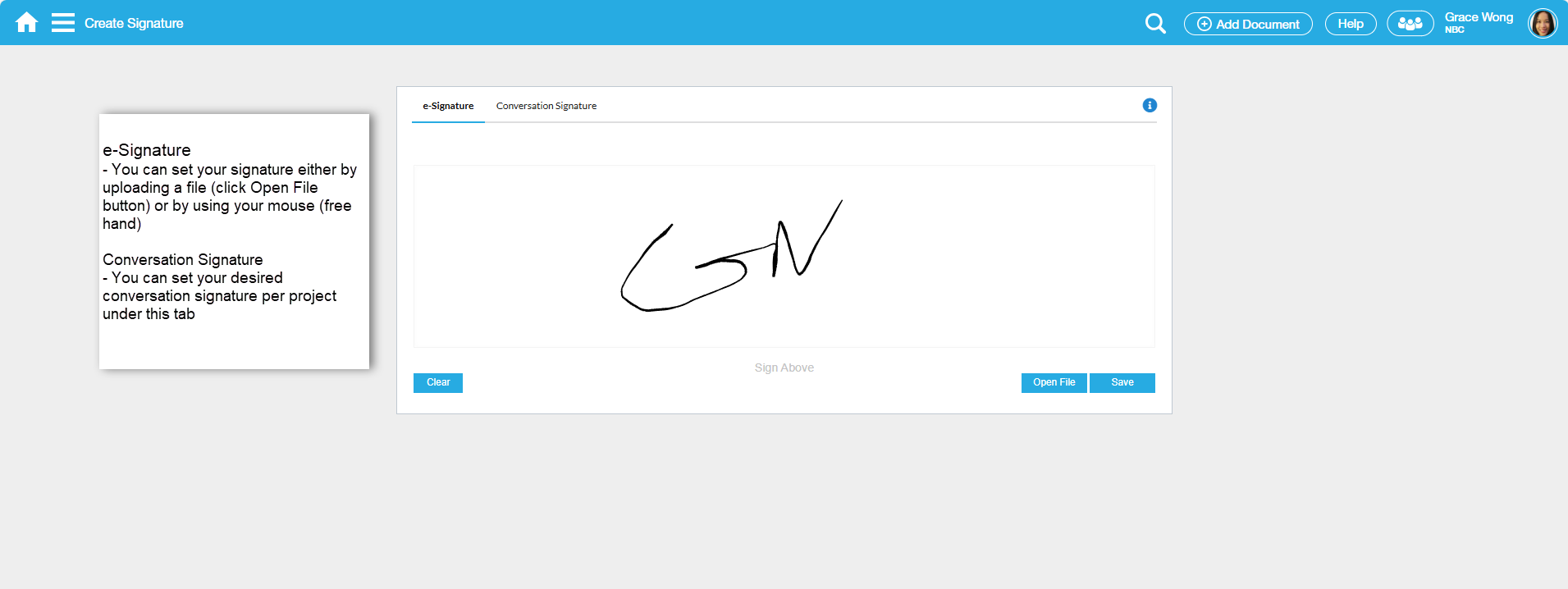
There are two ways to set/update Electronic Signature:
1. Set/Update Electronic Signature using the Mouse or Touchscreen device. |
|---|
|
| Click Settings > then select Create Signature. A pop-up screen will display and you can set or update the e-Signature as well as the Conversation Signature using the mouse or touchscreen device. Save the entered signature. |
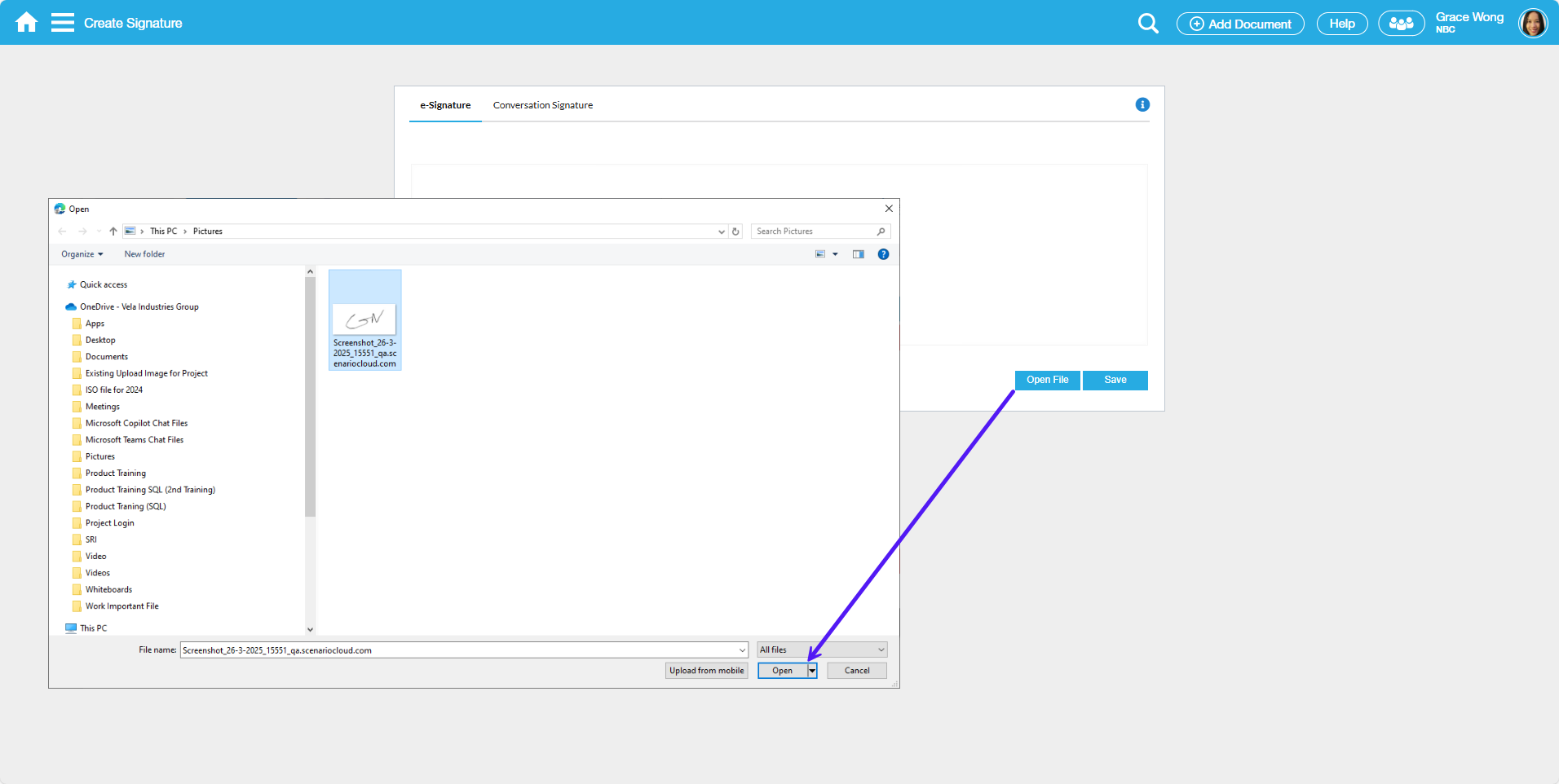
| 2 . Load Signature from an existing .img or .png file |
|
| Aside from manually creating the Signature, you can also opt to search for an existing .img or .png file of the signature then upload it. Also, click to save the signature. |

How Do I Upload Photo via My Settings?
There are two ways to upload a photo:
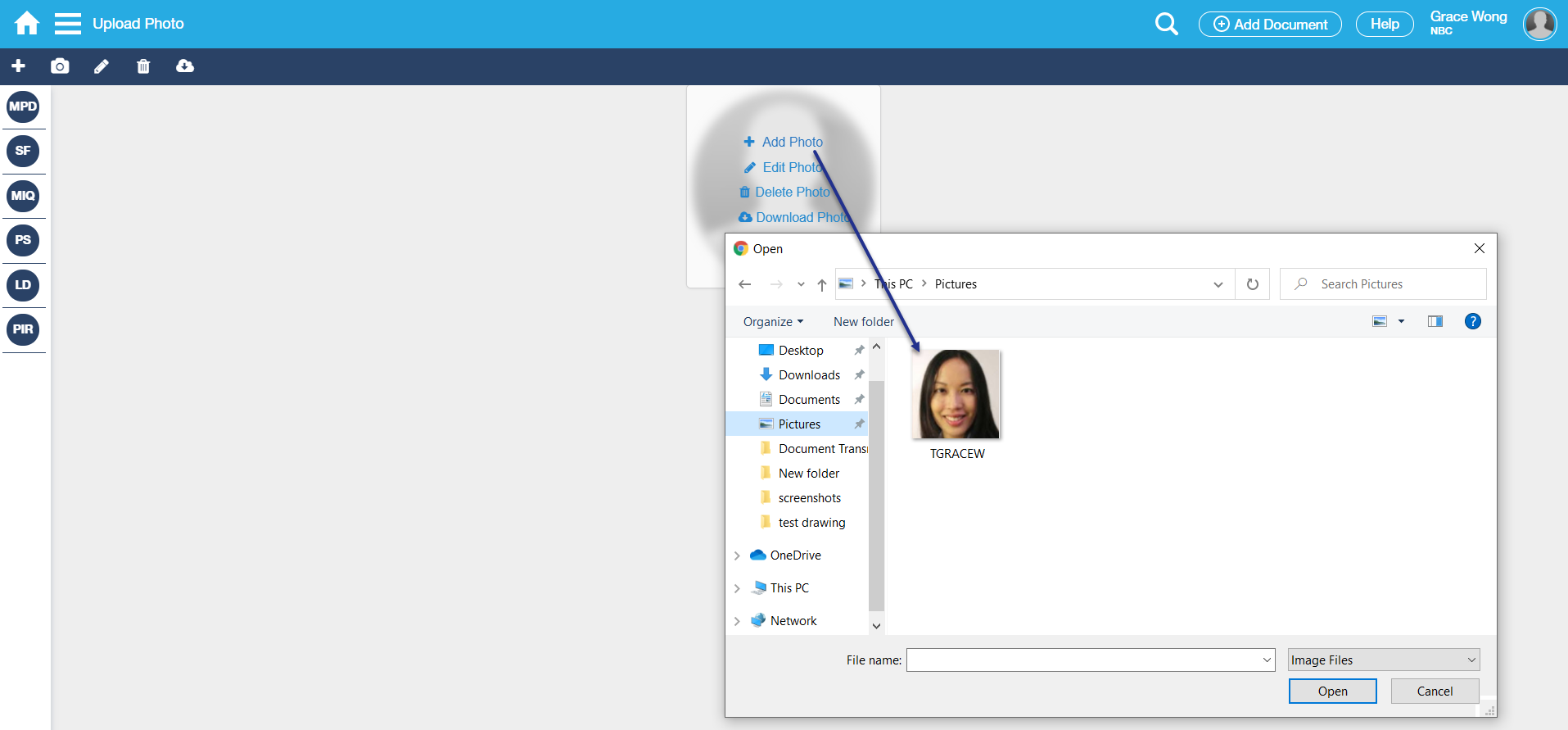
1. Add photo using the 'Add Photo' icon inside the image section. |
|---|
|
|
| 1. To upload a photo, click on the My Settings icon > Upload Photo. |
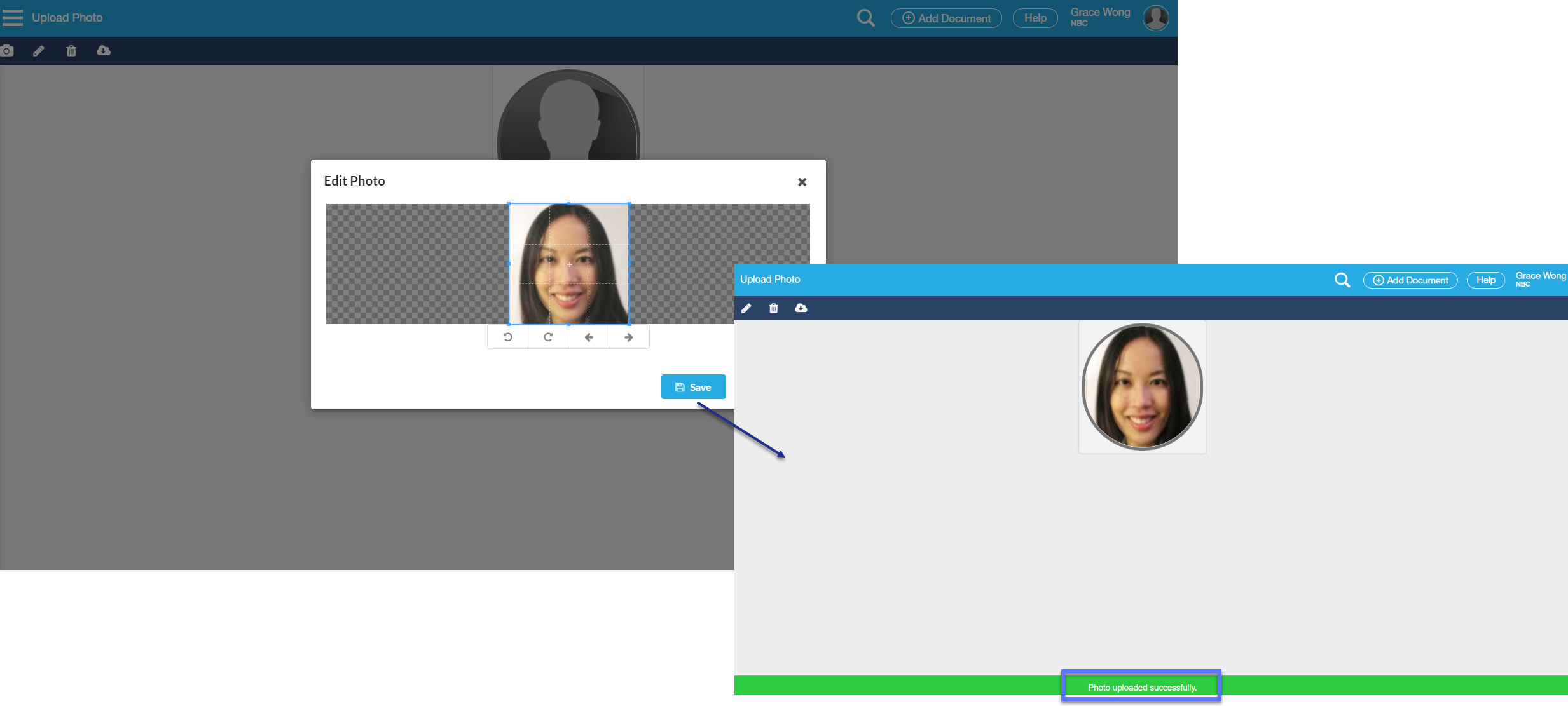
| 2. Select the + Upload Photo inside the image section. Use 'Edit Photo' if you want to adjust the size or facial viewpoints. |
| 3. To delete the photo, just select the 'Delete Photo' option; and download the photo by clicking the 'Download Photo' option. |
| 2. Add a photo using the icon on the upper left side of the action bar. |
1. You can also use the Webcam (Camera icon) to capture the image and set it as a photo. Note: The web camera icon will only be enabled with Chrome Browser. |
| 2. Edit, Delete, and Download icons are also available on the action bar. |
How Do I Set Page Open Default via My Settings?
1. Select from Set Page Open Default screen |
|---|
|
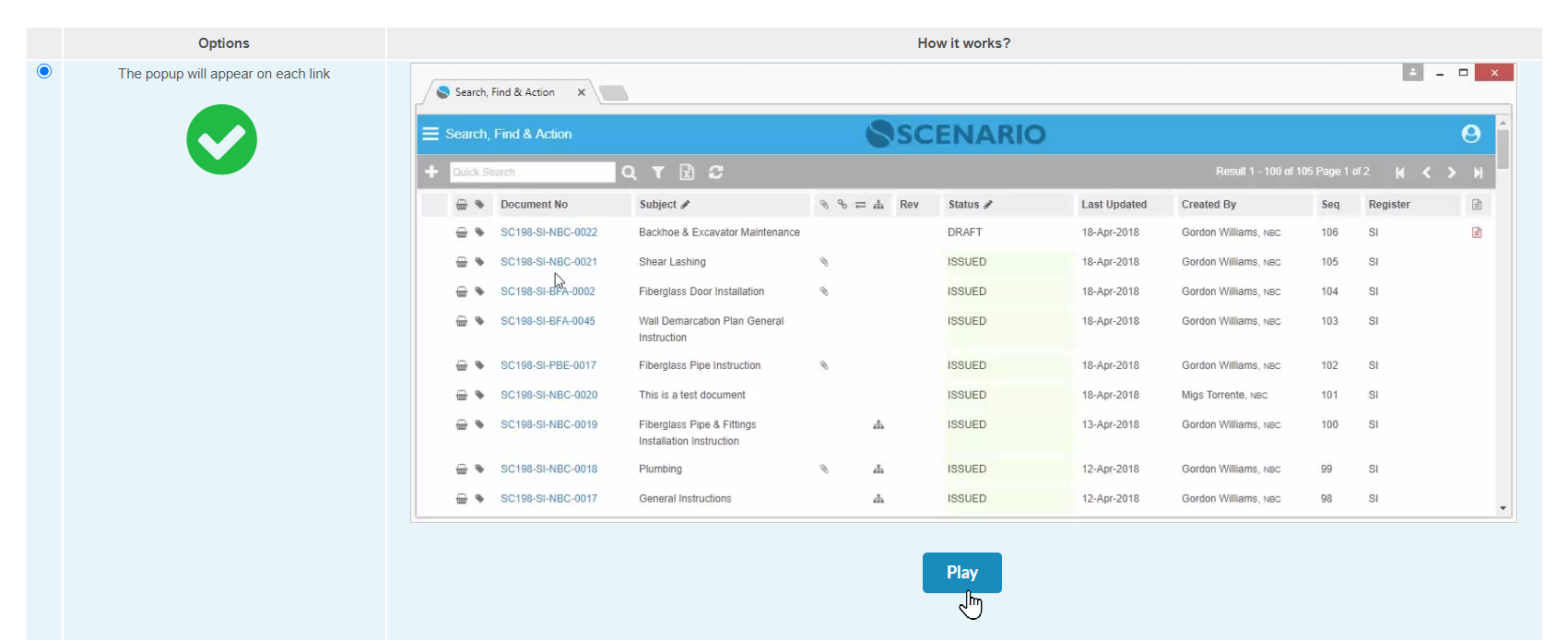
Open My Settings then select Set Page Open Default. On this screen, you will be provided with three options:
When the option is ticked, a green checkmark is displayed. |
|
| When the Play button is clicked, the procedure on how the option works is being demonstrated in a short video. |
How Do I Logout from the system?
1. Logout from Scenario Enterprise system |
|---|
|
|
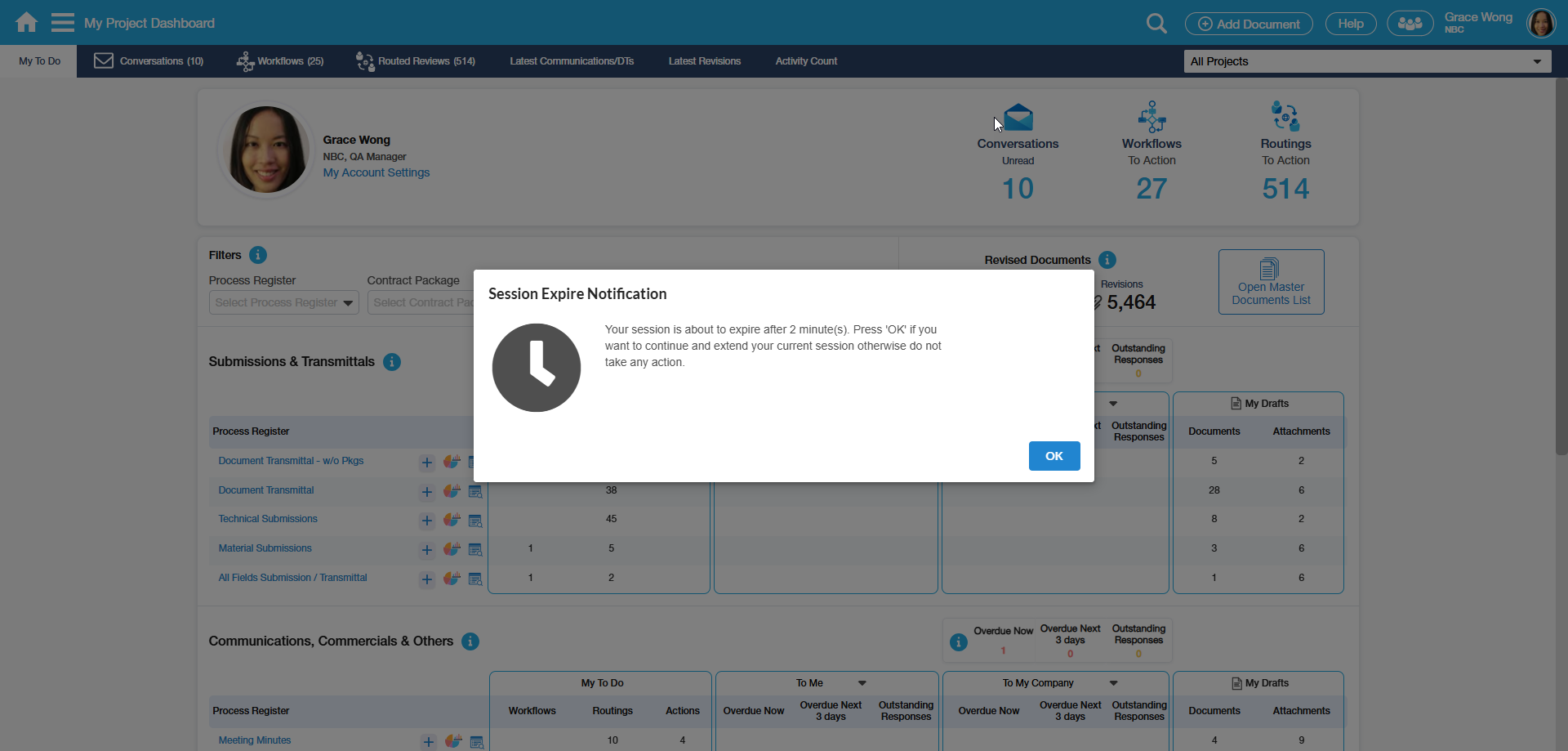
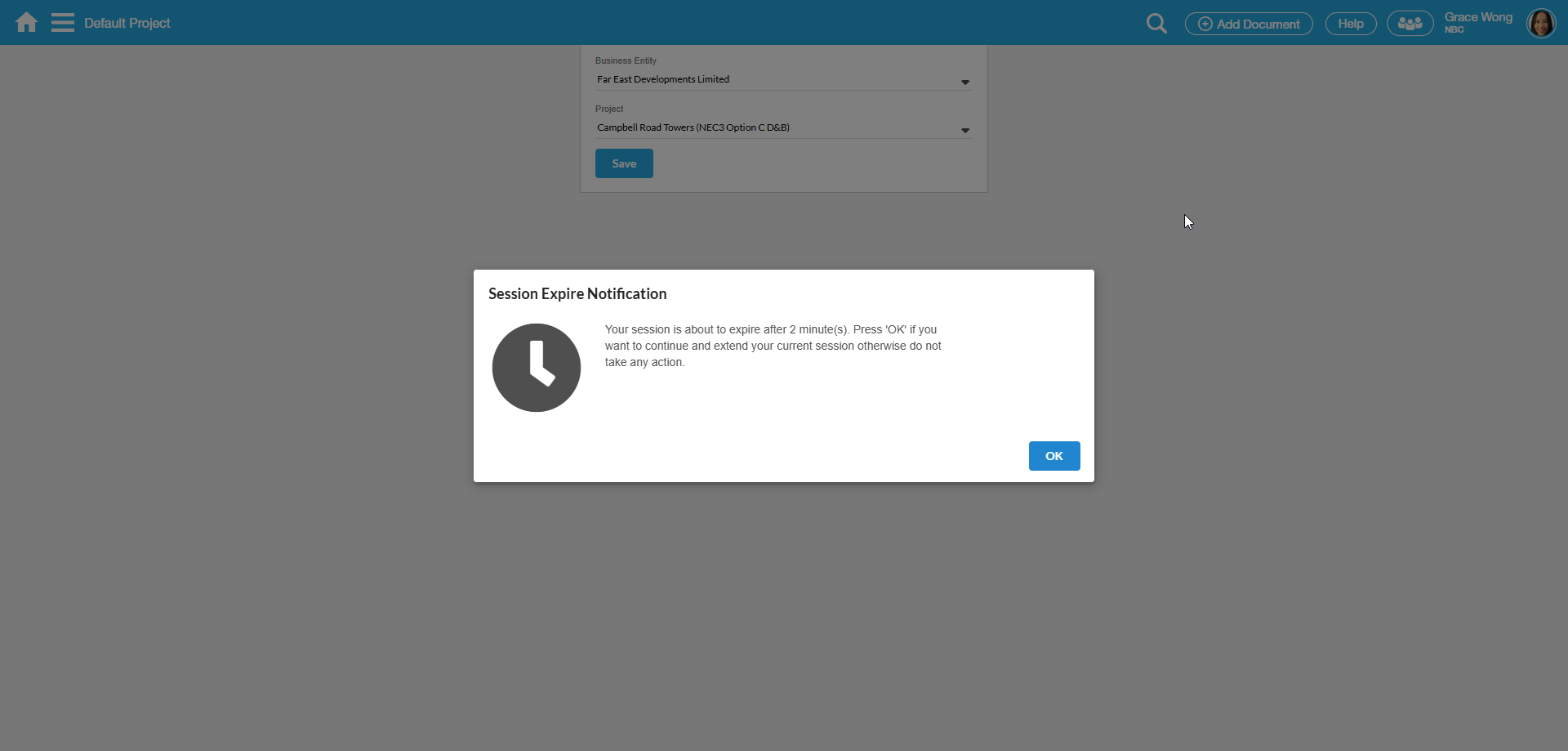
How Do I Handle Session Timeout?
1. The session is about to expire, and the remaining time is or under the session timeout grace period. |
|---|
|
|
2. The session has already expired. |
|
|
Examples of Use
<insert examples of use here>