
IWF - Initiate Workflow Page
Contents
Overview
You can use and handle the same process of initiating Workflow with the new Initiate Workflow (IWF) screen using an enhanced User Interface.
Workflow can now be controlled on who is permitted or authorized to Initiate a Workflow.
The use of Workflow Security Profile is now elective.
Screen Explanation
Initiate and Send Workflow
You can open the Initiate Workflow page through the following:
- From within the Document form entry, select the Workflow icon on the Action Bar either on the Details Tab
- Or, go to the Workflow tab and click the + Initiate Workflow button
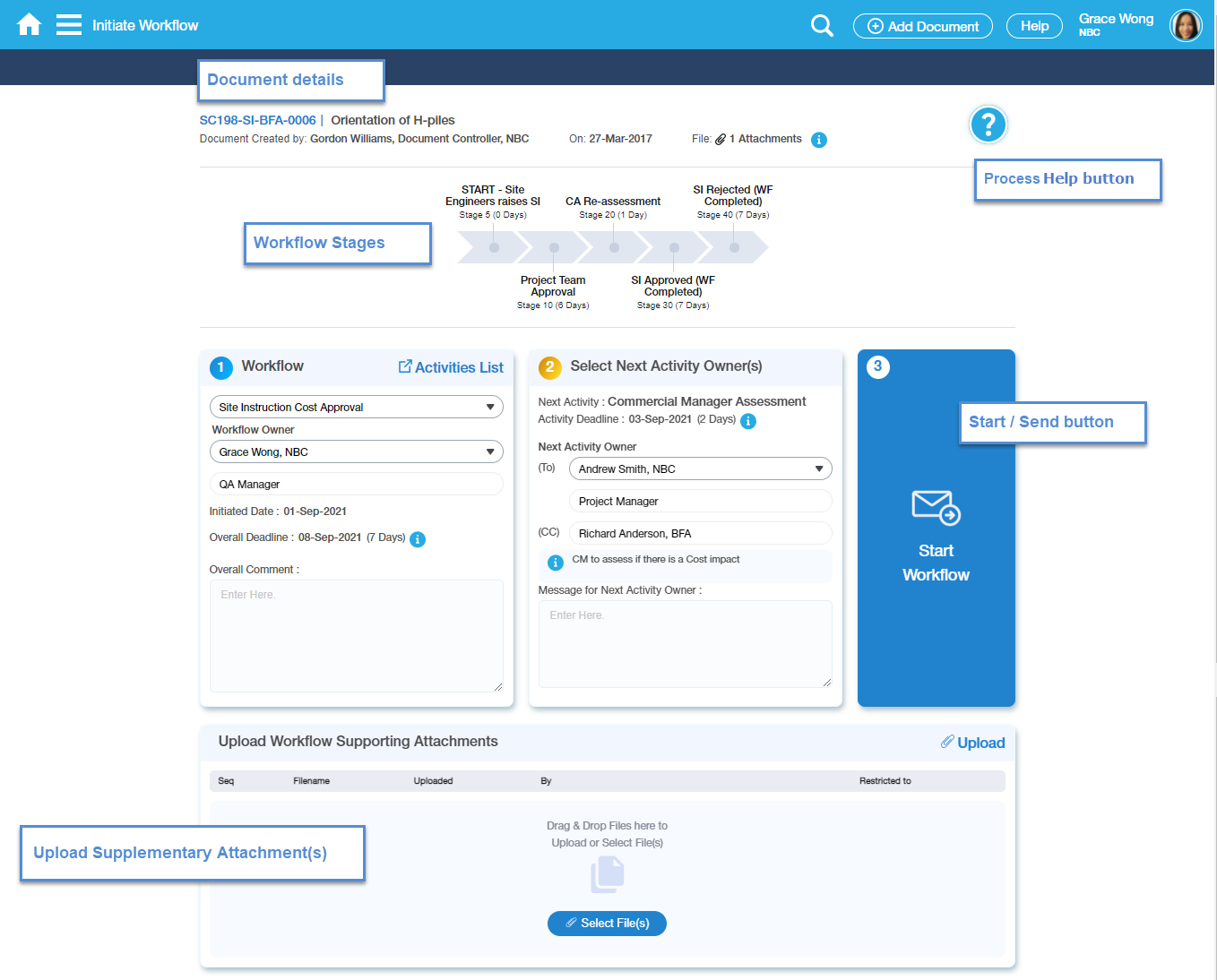
Field/Button/icon | Description |
|---|---|
Document Details | Displayed at the top-most part of the IWF screen. This is read-only indicating the Document details such as the Document Number, Subject, Document Creator, Document Created Date, and the Attachments. |
| Attachment Info | Displays the information of the Attachment(s) including the Sequence and the Filename. The filename is a hyperlink that when clicked will automatically download the file. The files are sorted with the latest on top. |
| Process Help button | This button is visible when a Process Help is available for the Register. For process help Guide topic, please refer to this link - Process Help Guide |
| Workflow Stages | This is used to determine what is the current stage or the Activity of the Workflow that has been initiated against the Document. |
| Workflow Details | |
| Workflow Name | The Workflow that is to be imitated. If there are multiple Workflows, select from the list. You can only see Workflows that are assigned to you and for the Registers that you have access to. |
| Workflow Owner | Defaults to the User who is initiating the Workflow, but can be edited and changed to other Users. |
| Workflow Owner Role | Project Role of the Owner |
| Initiated Date | Initiation date of the Workflow |
| Overall Workflow Deadline | This will normally default with a date based on a number of days after the Workflow is initiated depending on the contractual agreement of the project or as configured against the Workflow. |
| Overall Comments | Free text field to enter the overall Workflow comments |
Activities List | It displays the table list and the information of the entire Workflow. |
| Next Activity Details | |
| Next Activity Label | A disabled field for reference only showing the Next Activity Description. This is pre-configured. |
| Next Activity Deadline | Configured deadline of the next Activity. |
| Next Activity Owner To | The To field will default the Individual(s) based on the set-up in the Workflow Designer. Example- If the Next Activity Owner is Restricted by Commercial Manager Project Role, the name of the individuals that will appear in the To field are those with Commercial Manager Role. The default display will depend on the set-up if only one person or multiple. If multiple Owners are allowed, you can select several Owners by ticking the checkboxes. |
| Next Activity Owner Cc | Other Users that are included as For Info on this specific Workflow Activity. |
| Info icon | Info icon for Workflow Description. |
| Message for the Next Activity Owner | Text field wherein you can add comments and notes for the next Owner reference. This will be captured and saved on the Comments tab of the Document Form Entry. |
| Start Workflow | Send or Start button for the Workflow to progress. |
| Upload Workflow Supporting Attachments | Upload supplementary attachment(s) against the IWF screen. The uploaded file(s) will be reflected under the Document Form Entry Attachment tab. |
Activities List
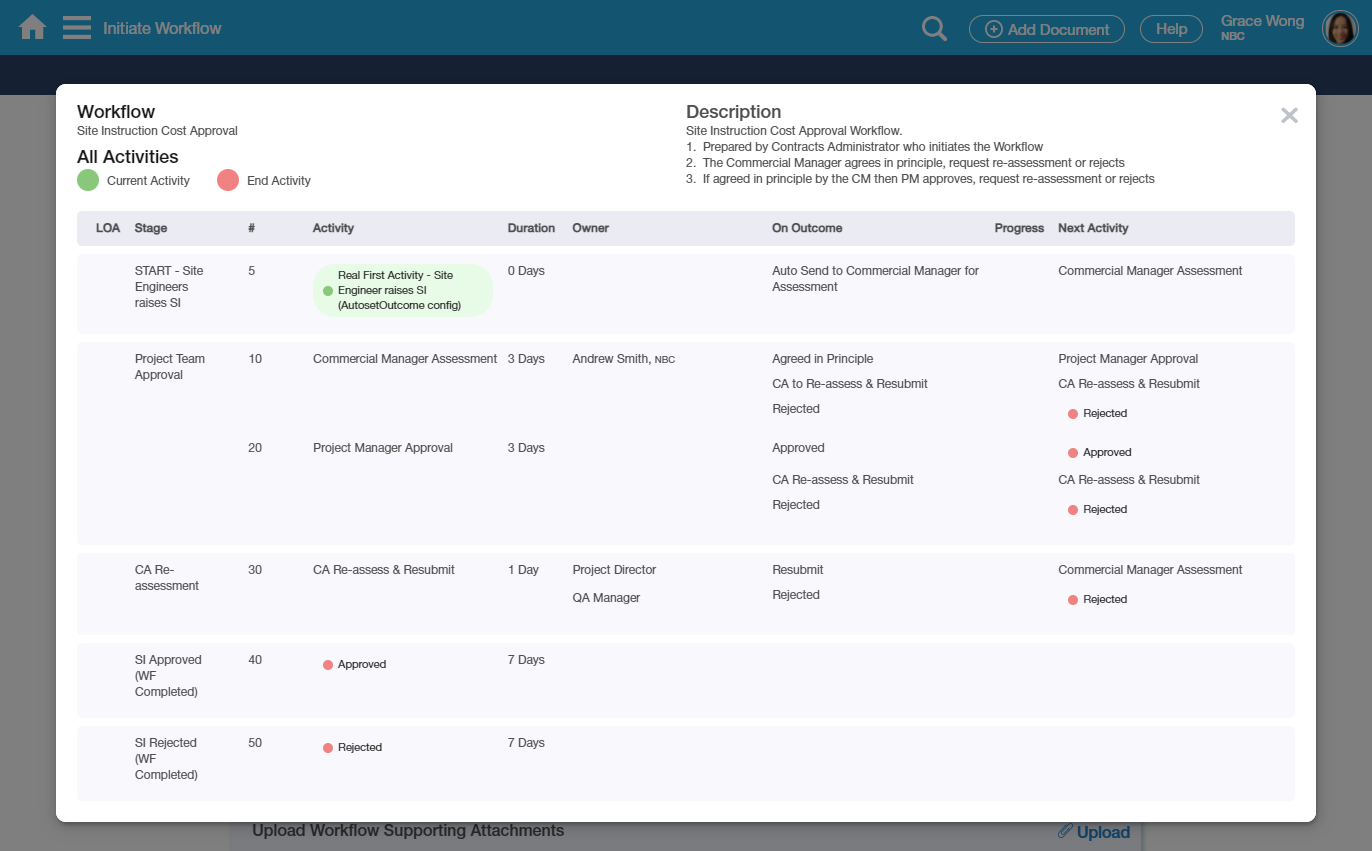
When you select the Activities List button you can view the Workflow description and all the corresponding Activities as per the configuration.
There is an indicator that highlights the Activity. Green indicates the current location of the Activity and what Activity it will progress on.
How Do I?
How Do I Initiate a Workflow?
As a User, once you are assigned or authorized to initiate a Workflow, you can do the following steps; otherwise, an Error message will be prompted and you will not be allowed to initiate the Workflow.
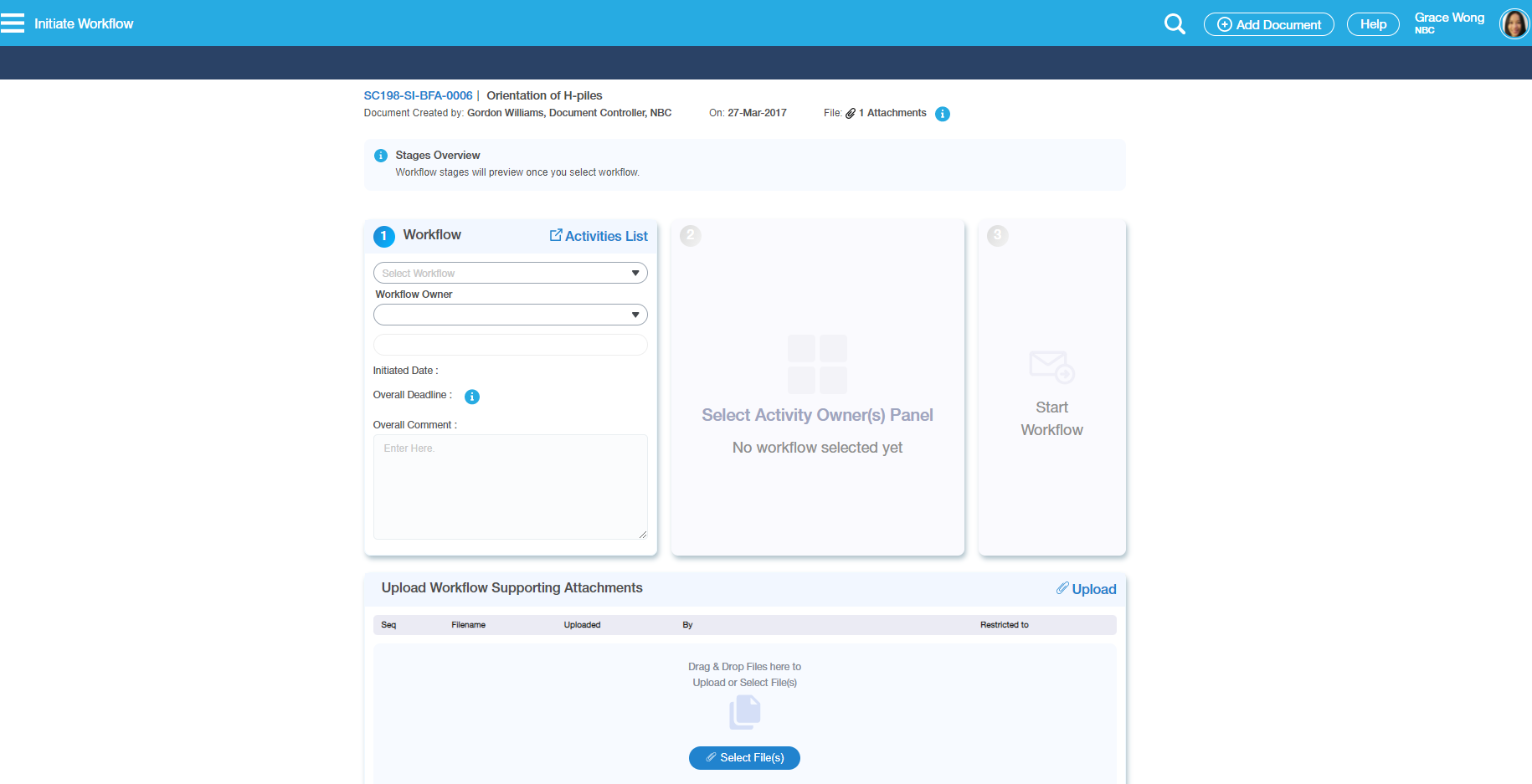
1. Select the Initiate Workflow button |
|---|
|
| CLicking the Initiate Workflow button will open the Initiate Workflow page. |
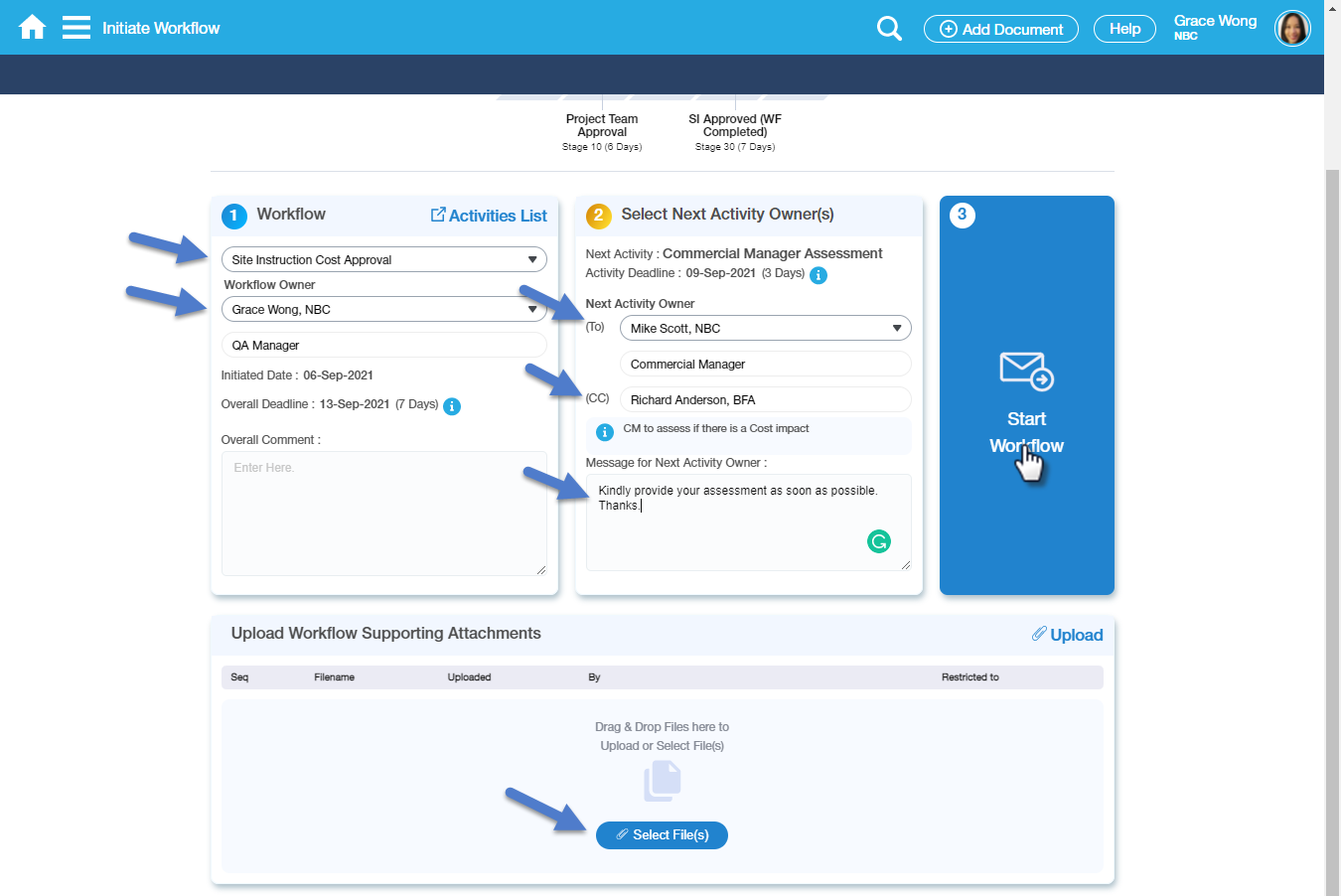
2. Enter the data on the fields. |
|
| 1st section - Workflow |
a.. You must select first the Workflow you intend to be initiated. Only Workflows you have access to and authorized to initiate are displayed in the list. If there is only one Workflow available, it automatically displays as default on the field. |
| b.. Once the Workflow is already selected, the Workflow Owner field will default with the User who is initiating the Workflow; however, this field is editable and can be changed to another User. |
| c.. Initiated Date and Overall Deadline Date field will have a default date as configured accordingly. This field is not editable. |
| d.. You may enter the overall comments for the Workflow. This field is optional. |
| 2nd section - Select Next Activity Owner(s) |
| e. The Next Activity Description will also be displayed (as configured). The Activity Deadline will be displayed automatically based on the setup. |
f.. To field will display the default value configured against the Workflow. In the above sample, the Next Activity Owner is a Commercial Manager. |
| g. Select Cc person as For Info on this Workflow Activity. A default For Info can be set as well in the configuration. |
| h. Enter comments on the field for the Next Activity Owner. |
| i. To add supplementary files, you may either opt to select the files from your folder or use the drag & drop feature to upload attachments. |
| 3rd section - Start Workflow |
| j. Finally, click on the Start Workflow button to carry on the Initiate Workflow process. |
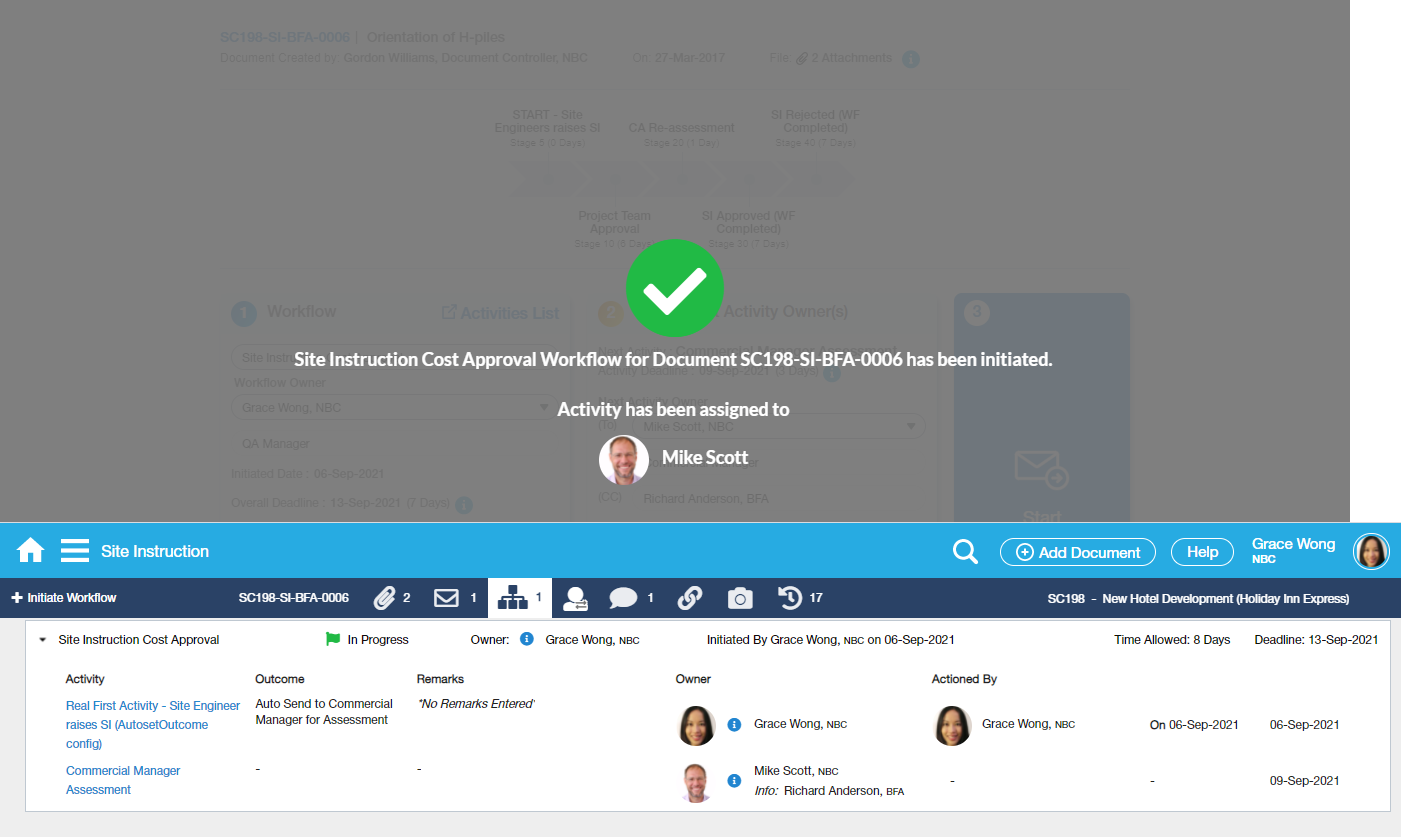
| 3. Check the details of the initiated Workflow |
|
Once the WF has been initiated, a green checkmark and a notification message will be displayed. Document Form Entry Workflow tab will be updated with the details. |
Who can initiate a Workflow?
1 - Once the 'Use Workflow Security Profile' checkbox is ticked, the Individuals with assigned Project Role Security against the Workflow and access to the Document are capable of initiating the Workflow.
2 - The capability of an Initiator to initiate a Workflow now depends on the 'Initiated By' setup against the Workflow if the 'Use Workflow Security Profile' checkbox is not ticked.
Sample Illustration.
| Initiate - Restrict by Company Project Role checkbox | Initiate - Restrict by User Project Role checkbox | Initiate - Restrict by Contract Package Role checkbox | Default Initiator From | Use Workflow Security Profile | Assigned User Profile | Who can Initiate? |
|---|---|---|---|---|---|---|
| Not ticked | Not ticked | Not ticked | Blank | Ticked | Commercial Manager Project Manager | Any user with Commercial Manager or Project Manager Role Profile assigned to the Workflow and with access to the Document. |
Ticked Initiator Company = Contractor | Not ticked | Not ticked | Blank | Ticked Not Ticked | Commercial Manager Project Manager | Nominated user with Commercial Manager or Project Manager Role Profile assigned to the Workflow and then with access to the Document and whose Parent Company's nominated Company Project Role is 'Contractor' Nominated user with access to the Document and whose Parent Company's nominated Company Project Role is 'Contractor' |
| Not ticked | Ticked Initiator User = Project Manager | Not ticked | Blank | Ticked Not Ticked | Commercial Manager Project Manager | Nominated user with Project Manager Role Profile assigned to the Workflow and with access to the Document and Workflow and whose Project Role is Project Manager Nominated user with access to the Document and whose Project Role is Project Manager |
| Not ticked | Not ticked | Ticked Initiator User = Package Contractor | Blank | Ticked Not Ticked | Commercial Manager Project Manager Package Contractor | Nominated user with Project Manager/Commercial manager, or Package Contractor Role Profile assigned to the Workflow and access to the Document whose Contract package Role is Package Contractor and the Package value is selected in the Document Nominated user access to the Document whose Contract Package Role is Package Contractor and the Package value is selected in the Document |
Ticked Initiator Company = Contractor | Not ticked | Ticked Initiator User = Package Contractor | Blank | Ticked Not Ticked | Commercial Manager Project Manager Package Contractor | Nominated user with Project Manager/Commercial manager, or Package Contractor Role Profile assigned to the Workflow and access to the Document whose Parent Company's nominated Company Project Role is 'Contractor' and whose Contract package Role is Package Contractor and the Package value is selected in the Document Nominated user with access to the Document whose Parent Company's nominated Company Project Role is 'Contractor' and whose Contract package Role is Package Contractor and the Package value is selected in the Document |
Ticked Initiator Company = Contractor | Ticked Initiator User = Project Manager | Not ticked | Blank | Ticked Not Ticked | Commercial Manager Project Manager | Nominated user with Project Manager Role Profile assigned to the Workflow and with access to the Document whose Parent Company's nominated Company Project Role is 'Contractor' Nominated user with access to the Document whose Parent Company's nominated Company Project Role is 'Contractor' |
| Not ticked | Not ticked | Not ticked | From / Originator field To / Recipient Cc Bcc | Ticked Not Ticked | Commercial Manager Project Manager | Any user with Commercial Manager or Project Manager Role Profile assigned to the Workflow and with Access access to the Document whose Parent Company is in the From/To/Cc/Bcc field Any user with Access access to the Document whose Parent Company is in the From/To/Cc/Bcc field |
| Not ticked | Not ticked | Not ticked | Raised By Responsible person Attention Creator of the Document | Ticked Not Ticked | Commercial Manager Project Manager | Any user with Commercial Manager or Project Manager Role Profile assigned to the Workflow and with Access access to the Document whose Parent Company is in the Contact Selector field(Raised By/Responsible Person/Attention) or the User who created the Document. Any user with Access access to the Document whose Parent Company is in the Contact Selector field(Raised By/Responsible Person/Attention) or the User who created the Document. |