
Search Filters Functionality
Contents
Overview
The 'Search Filters' pop-up within SF - Search, Find & Action page empowers you to compactly and quickly find documents or records within the overall system, by project or by the register.
This Search pop-up comprises detail Filters, Recent, Favourites, My Collections, Saved Searches and Following will be individually discussed below.
Screen Explanation
Filters
Parameters
There are key base filters in the Search Filters popup. Upon selecting the filter, the information bar below explains what the Search does.
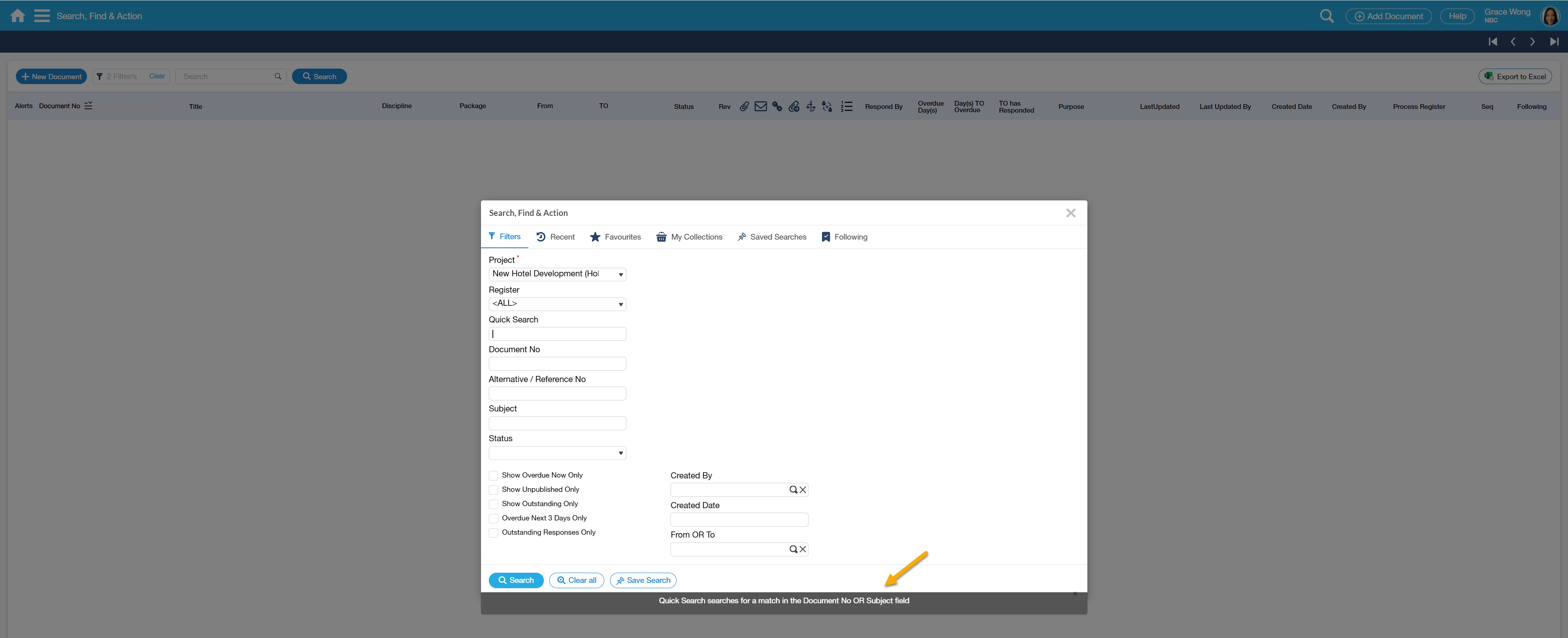
Quick Search filter field searches for a match in the Document No or Subject field.
When a Register is selected in the field, additional filters can be used further filtering based on what has been configured in Register metadata.
Typical filters based on the Register metadata configuration include the following:
- Responsible Person, Raised By, Attention, Keywords
- Statuses
- Date Filters
- Global Lookup filters
- Address Selector Filter
- Discipline
- Code 1 to Code 5
- Document Sub-Title
- Packages
- Flags (Checkboxes Type of Object) - Flag 1 to Flag 5, Response Required, Closed Out, Has Time Impact, Has Cost Impact, etc.
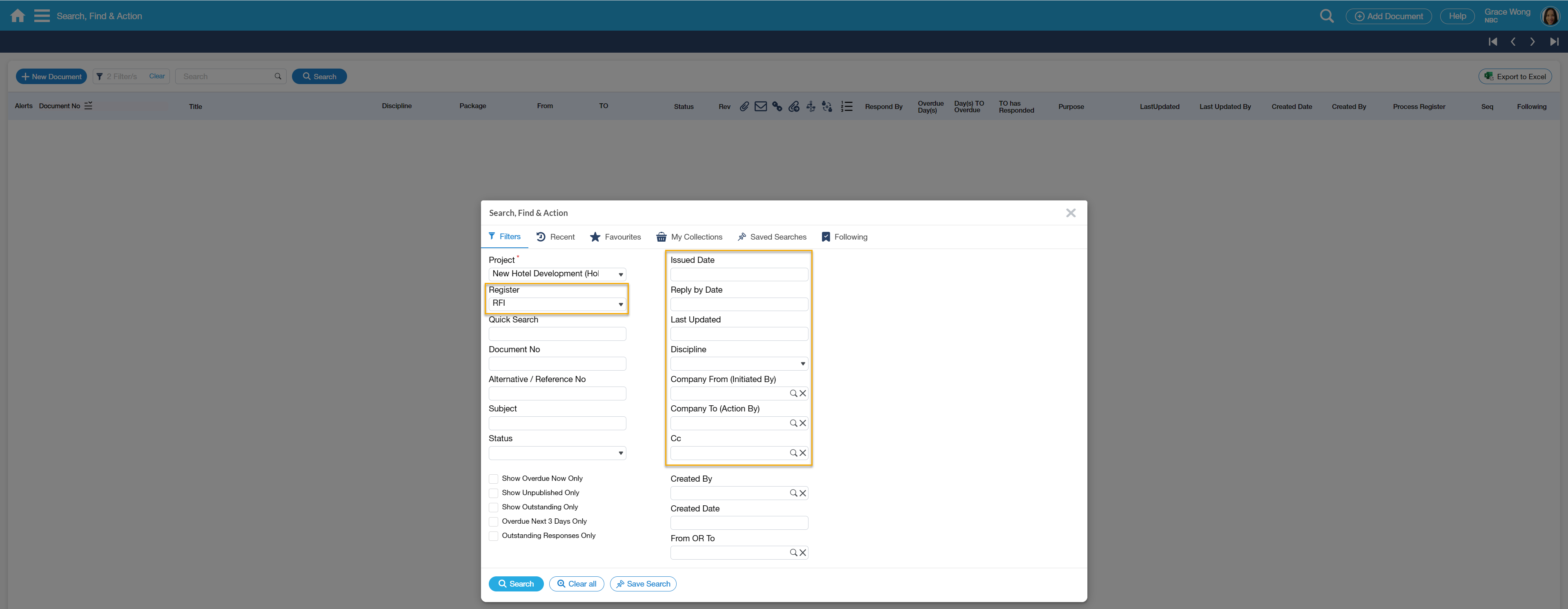
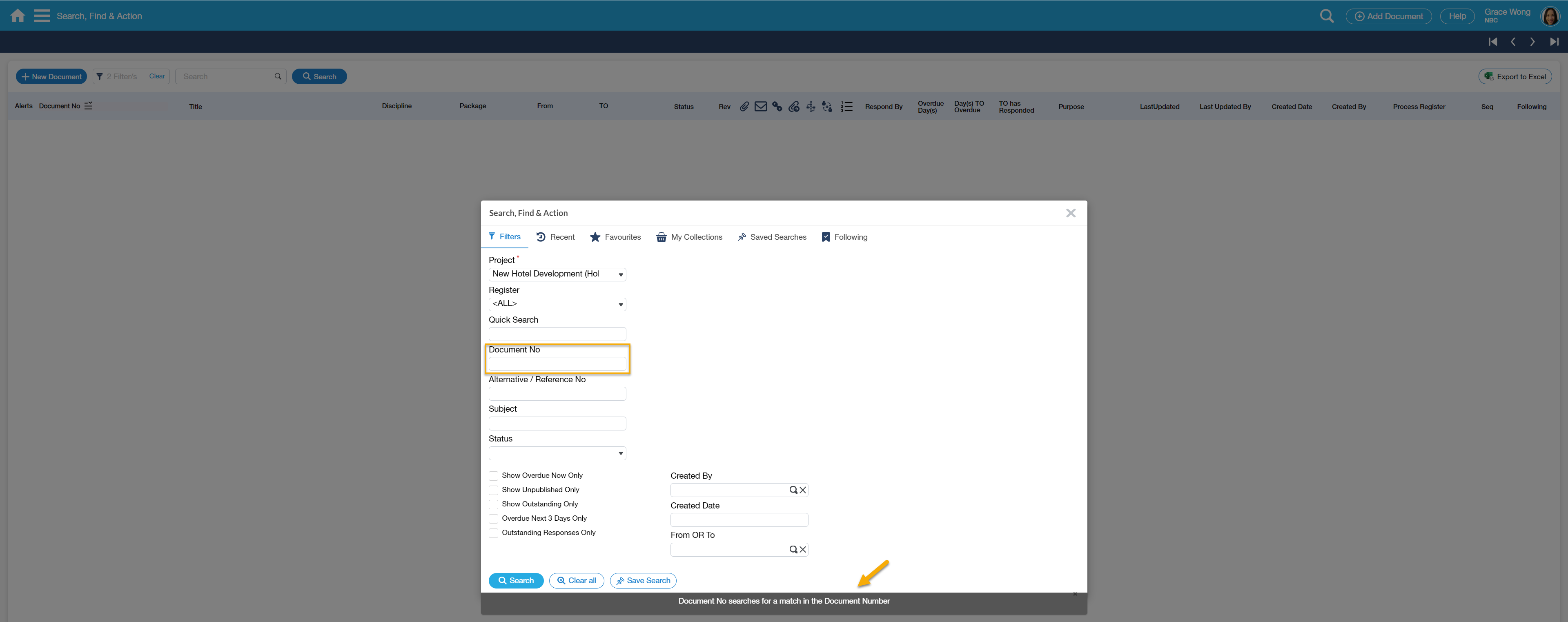
Hint - Document No is a great search to use where the Client & the Contractor have a different document number for the same document - as the Document No. search looks at various alternative document numbers saved in Scenario.
Notes for Drop-down fields control:
1. When typing in a search text in a drop-down field and no result is selected, then the control loses focus then field will be blank.
2. When typing in a search text in a drop-down field and no results are found, a message will be shown, 'No Records Found' just like the lookup control.
Field | Description |
|---|---|
| Project | This targets the search to a specific Project (defaults to your default Project). Note - can Search <All> Projects. |
| Register | This targets the search to a specific Register (or ALL Registers which is the default). |
| Quick Search | You may enter any combination of texts, symbols or numbers, and the application will search the Document Number or Subject field to find a match. |
| Power Search | The same concept with Quick Search but with Power Search has a wider range of searching that looks into the Document No, Conversations, Attachments and even Comments. |
| Document No | This searches for a match in the Document No, Reference No or Alternate No Fields. This is a great search to use where the Client & the Contractor have a different document number for the same document. |
| Subject | This searches the Subject field. |
| Status | This searches for a match in the Document's Status. Multiple Statuses can be selected as a filter. |
| Date Filters | Created Dated, Received Date, Respond By Date, Last Updated, Date1 to 4, Issued Date, GL Effective Date, Closed Out Date - also configurable in Register metadata. These filters will display only if you select a Register in Register filter field and depends on the Register metadata configuration. |
| Global Lookup Filters | Global Lookup fields can also be used as filters. These filters will display only if you select a Register and depends on the Register metadata configuration. |
Search Strings
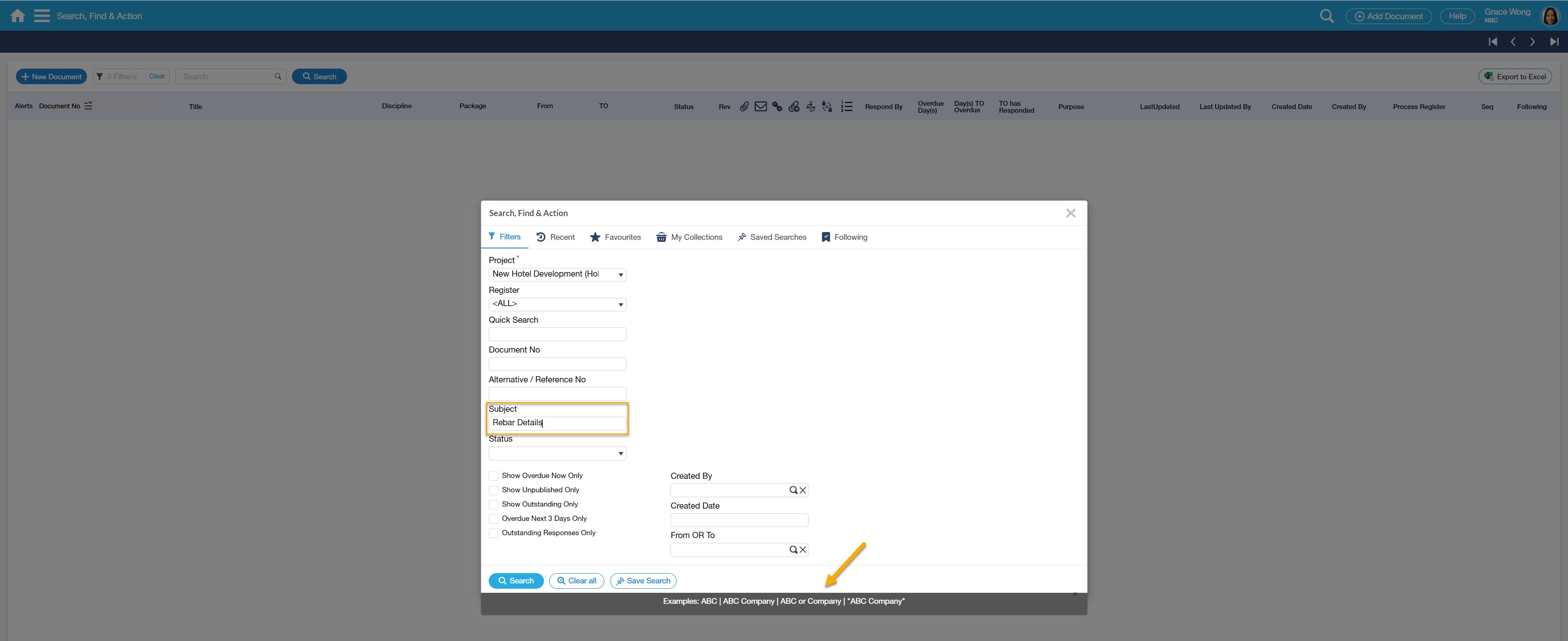
You can instigate a search using a specific string of data, triggering OR or AND search.
This type of search occurs in the Subject filter. When you select the Subject filer, the information bar at the bottom shows examples of different searches.
Recent Tab
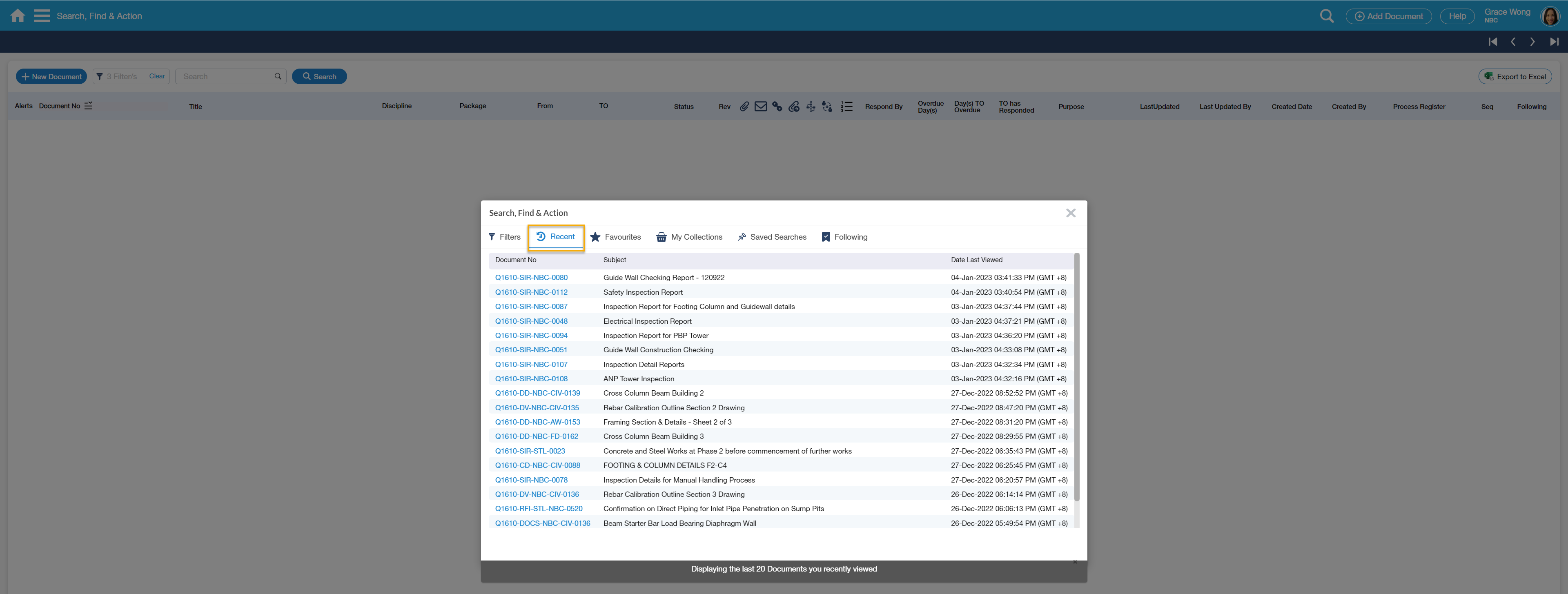
Recent Tab displays the documents that have been accessed lately. It displays the last 20 documents you have recently viewed with the most recent on top.
You can select the Document Number hyperlink to open the document directly.
Favourites
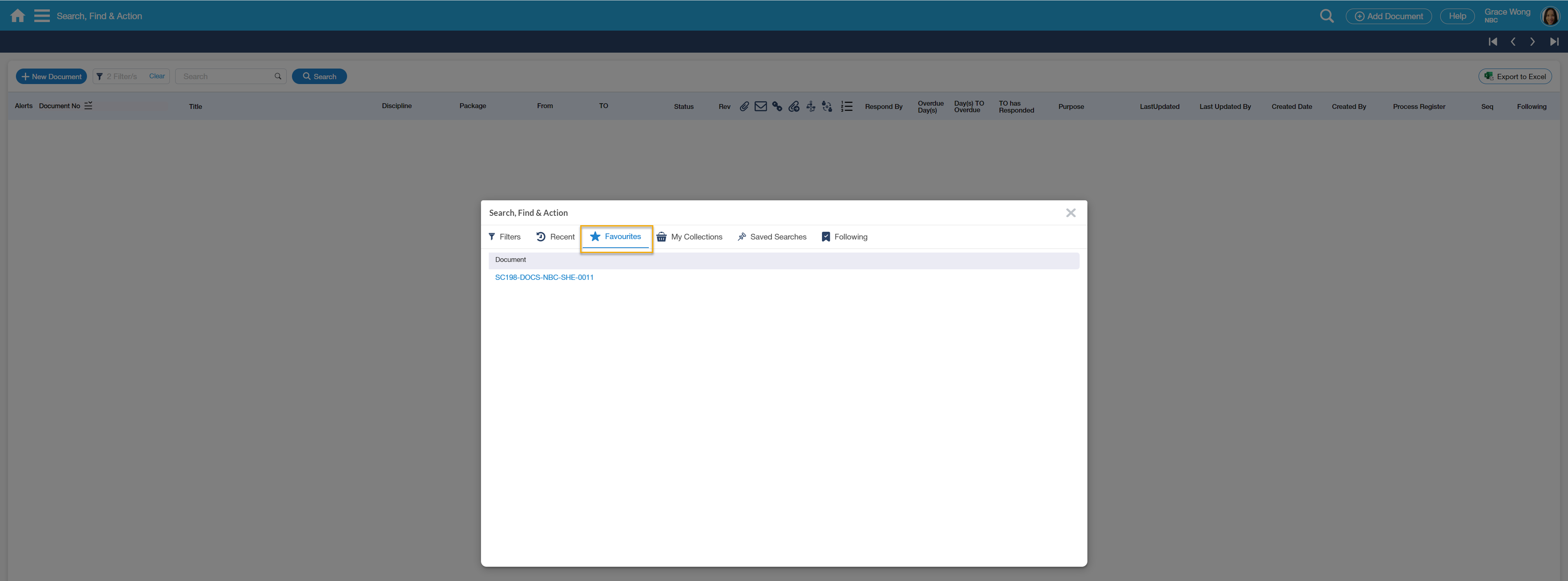
Favourites tab list any document that has been tagged as 'My Favourite' - Adding documents to Favourites is done thru Right Hand Menu.
Selecting the Document Number hyperlink will open the document directly.
My Collections
'My Collections' allows you to tag Documents. It represents your collections of documents for easier search and reference.
Confidentiality settings (Restricted To) is also a handy feature in collections. The same security rules apply in this confidentiality settings; e.g., when a Collection is assigned to My Company, another user from the same company can view that saved collection in Transmit Documents and Latest Drawings screens.
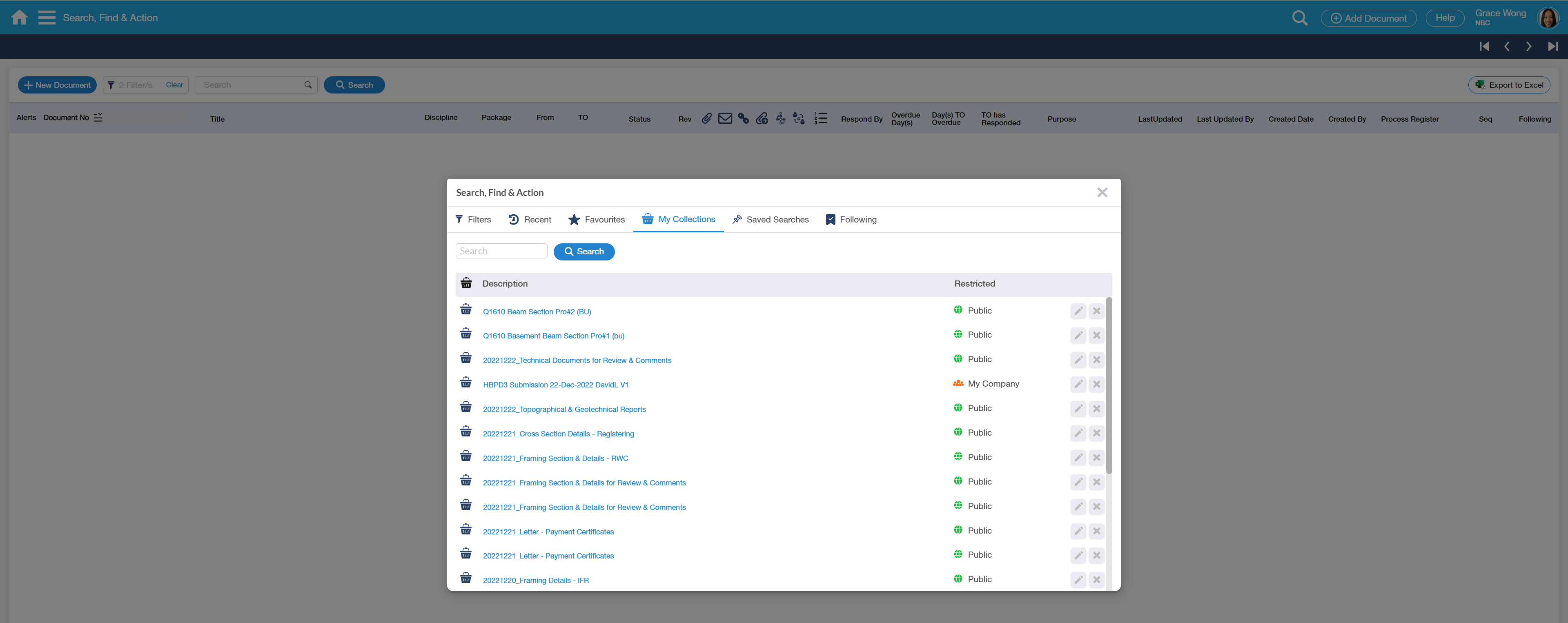
Just by clicking on the Collection name in the 'My Collections' list will lead you directly to SFA search result.
The list of Documents saved to a Collection can be exported to an Excel file for report purposes.
Saved Search
Saved Searches tab is where you can save specific Search parameter values and can be re-used again.
When you select one of these Saved Searches, it will activate the Search then take you to the Search Results page.

Following
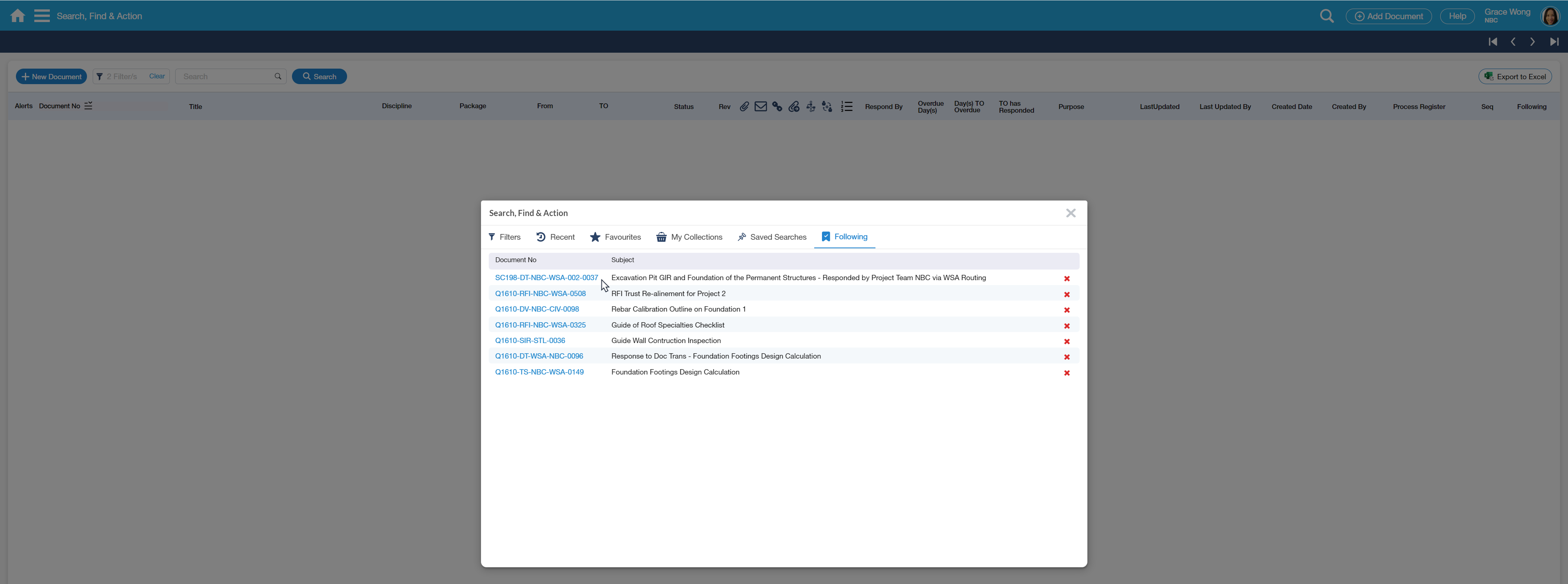
Following a Document is much the same as following a particular site or topic in different forms of Social Media.
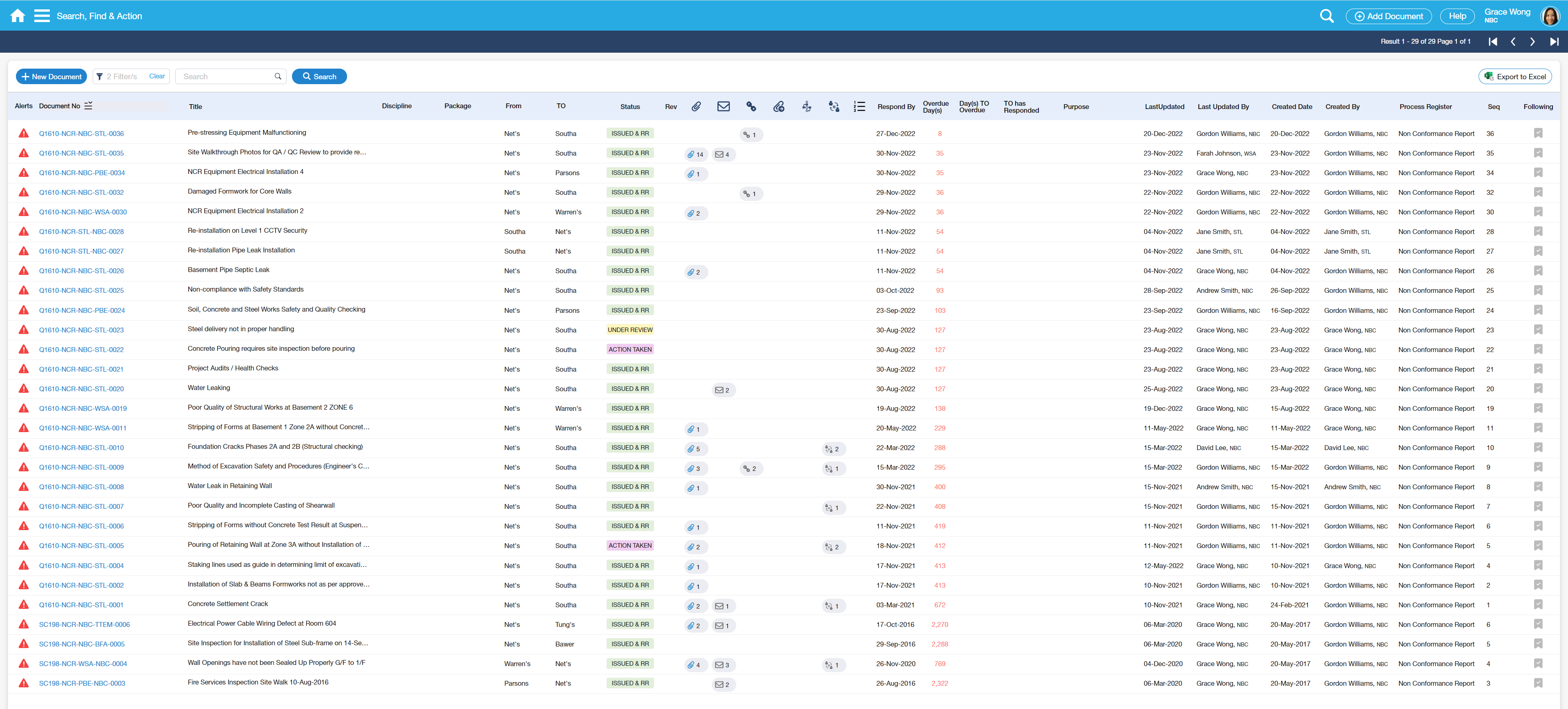
In the Search/Filters popup, you can select the 'Following' Tab to view all documents you are following:
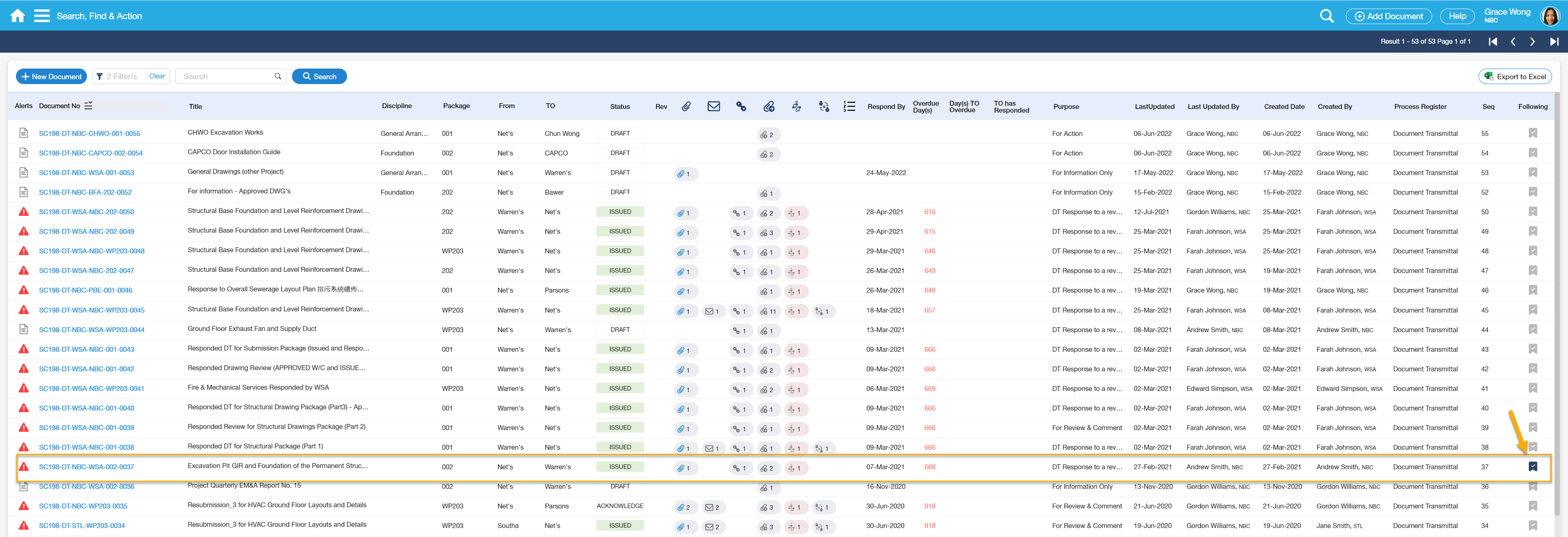
On the Search Results page, a tag icon at the left side becomes green once the Document has been selected and being Followed.
How Do I?
How Do I Add a Document to Favourites?
1. Add a Document to Favourites |
|---|
|
1. Go to the document form that is to be added to Favourites. |
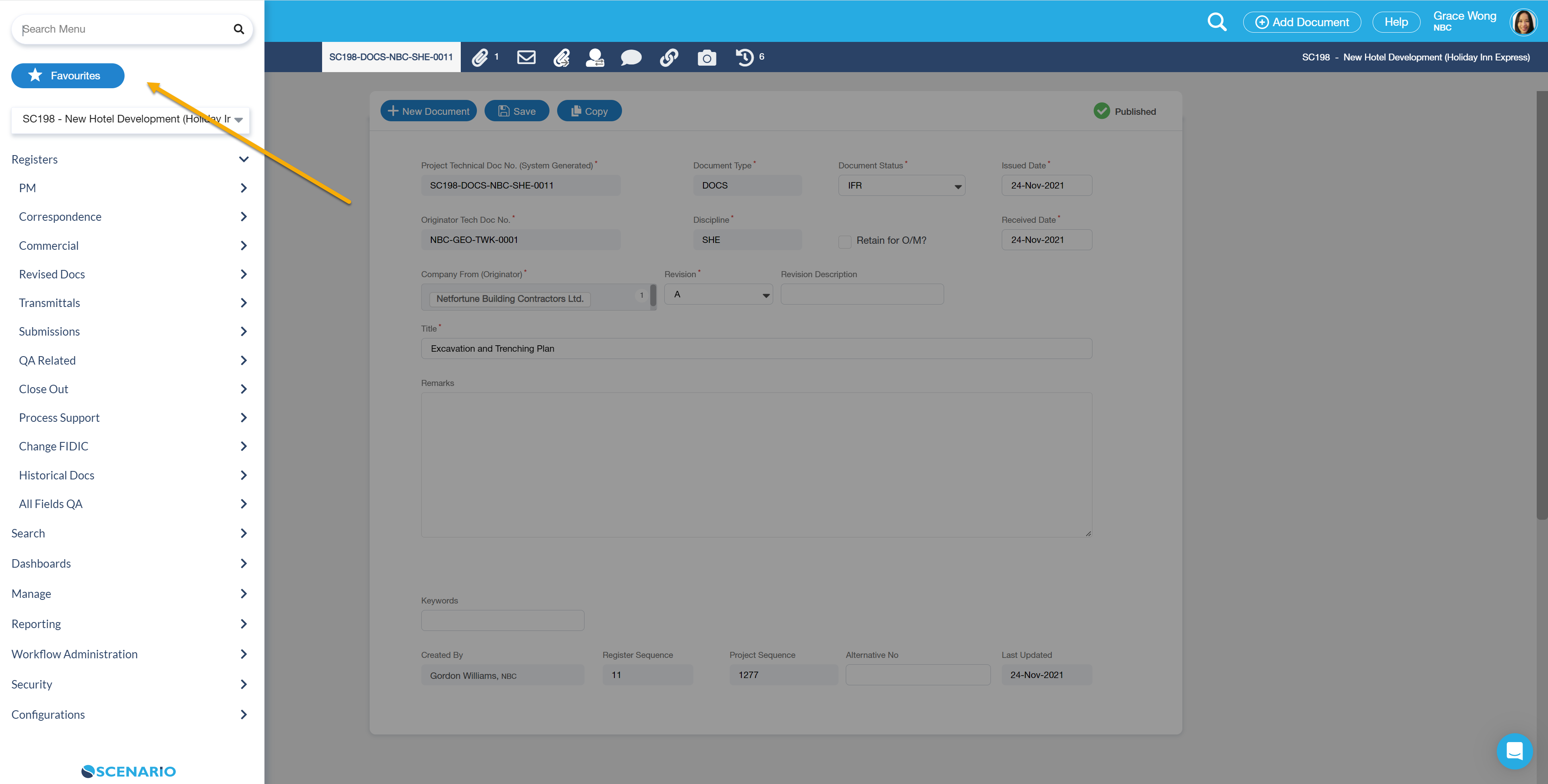
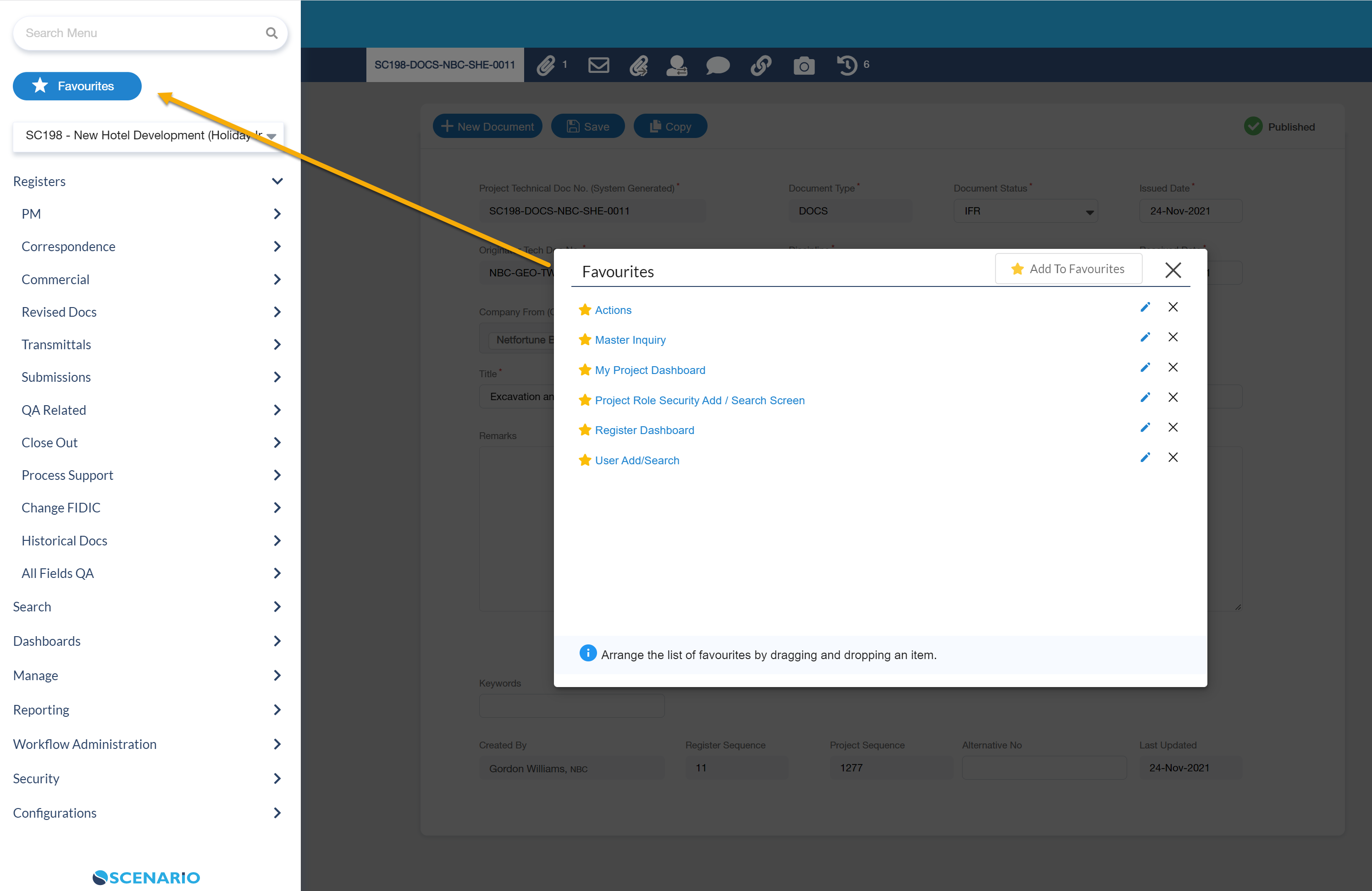
| 2. Click Right Hand Menu icon to display the menus under it and select Favourites. It will then open a pop-up screen (defaulted to My Favourites tab). |
|
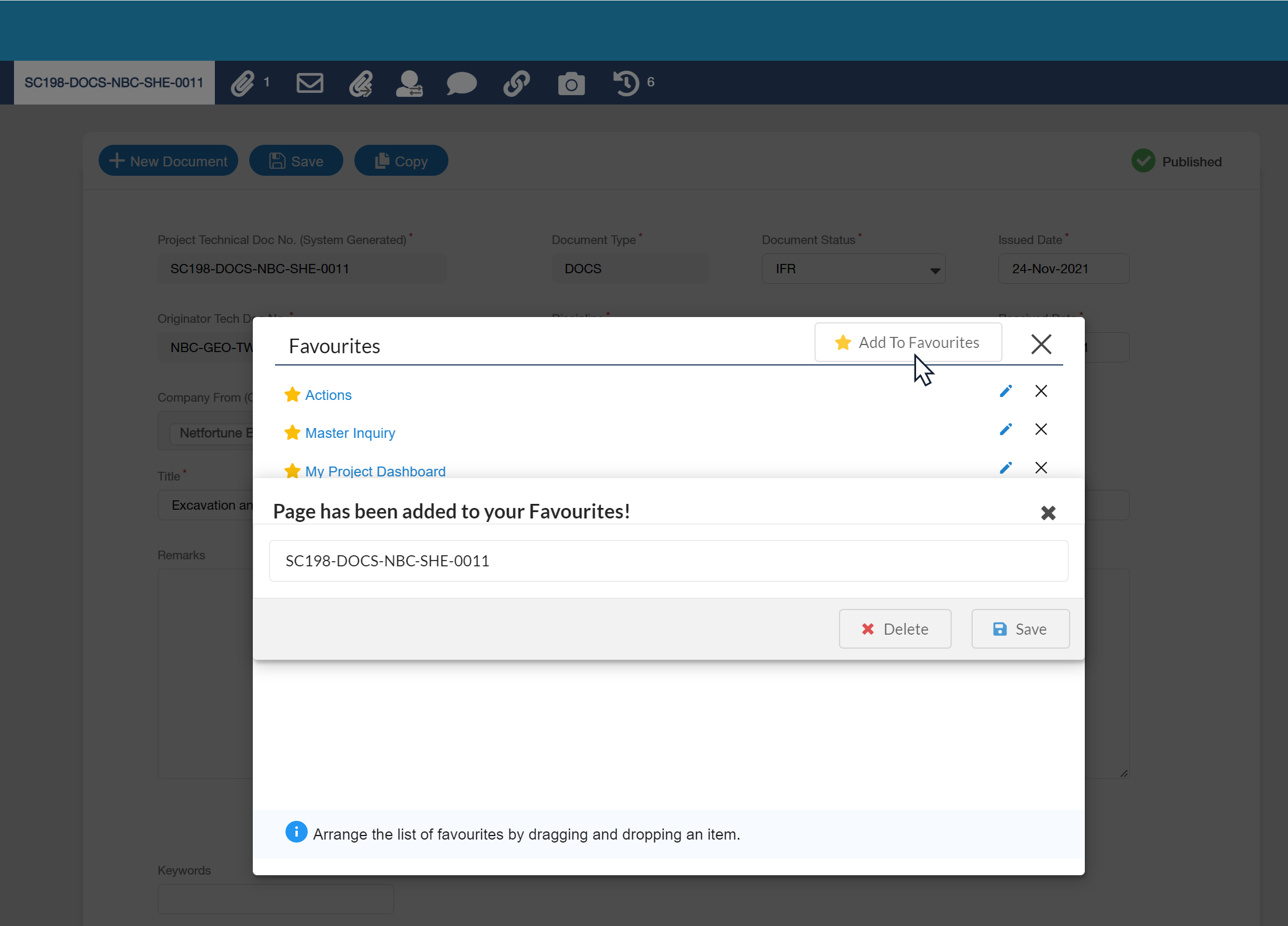
3. Clicking on the Add To Favourites button will open another pop-up window notifying you that 'The page has been added to your Favourite!'. This will also display the name of the page (or document) that has been added.
|
2. Edit a page (or Document) name that has been added to Favourites. |
|
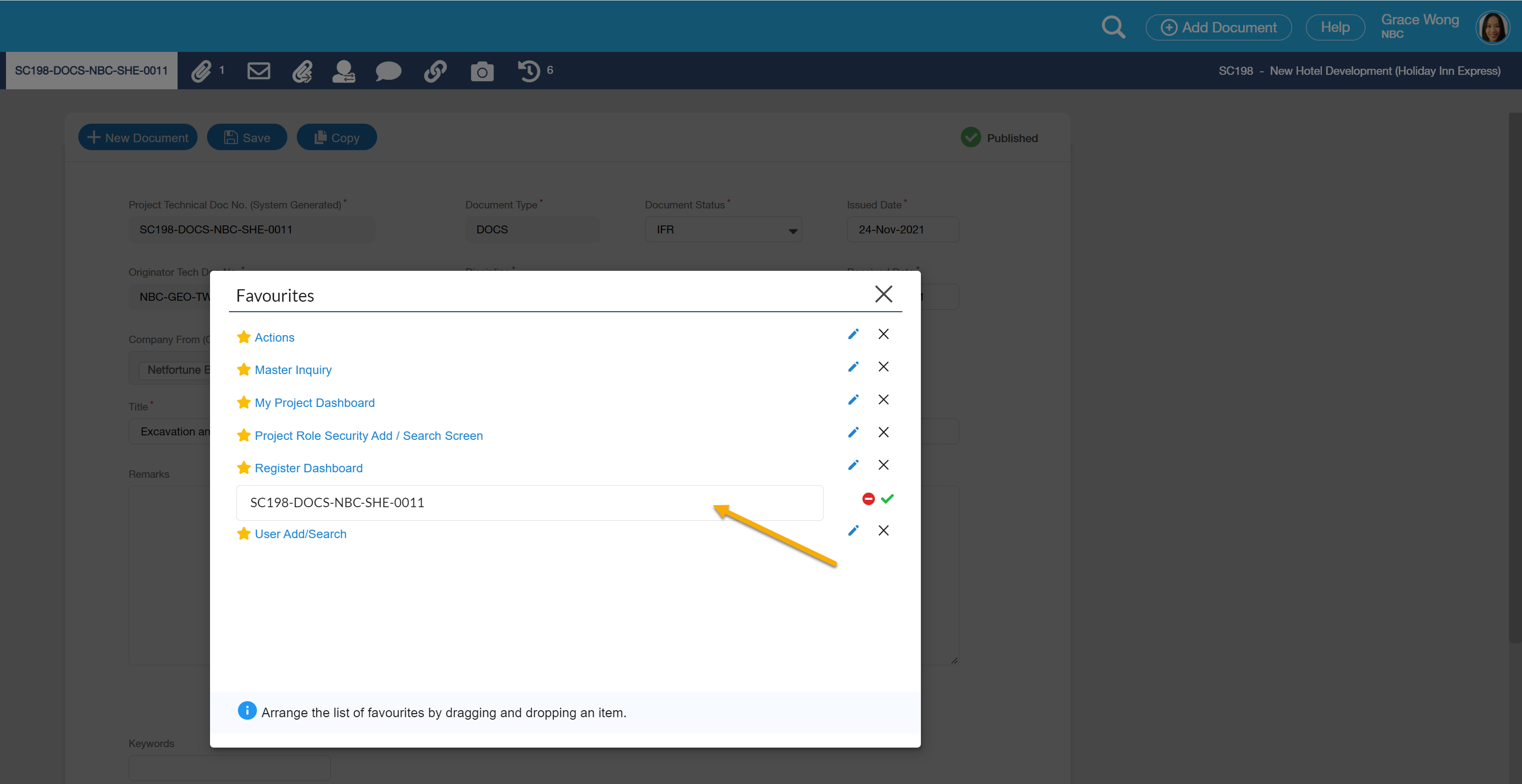
| 1. Edit the Screen name by clicking the 'blue pencil' icon opposite the page name. However, opting to delete the page that has been added to Favourites, just click the red 'x' to remove the screen from the menu. Please refer to the Right-Hand Menu page for further details |
How Do I Edit a Collection?
|
|---|
|
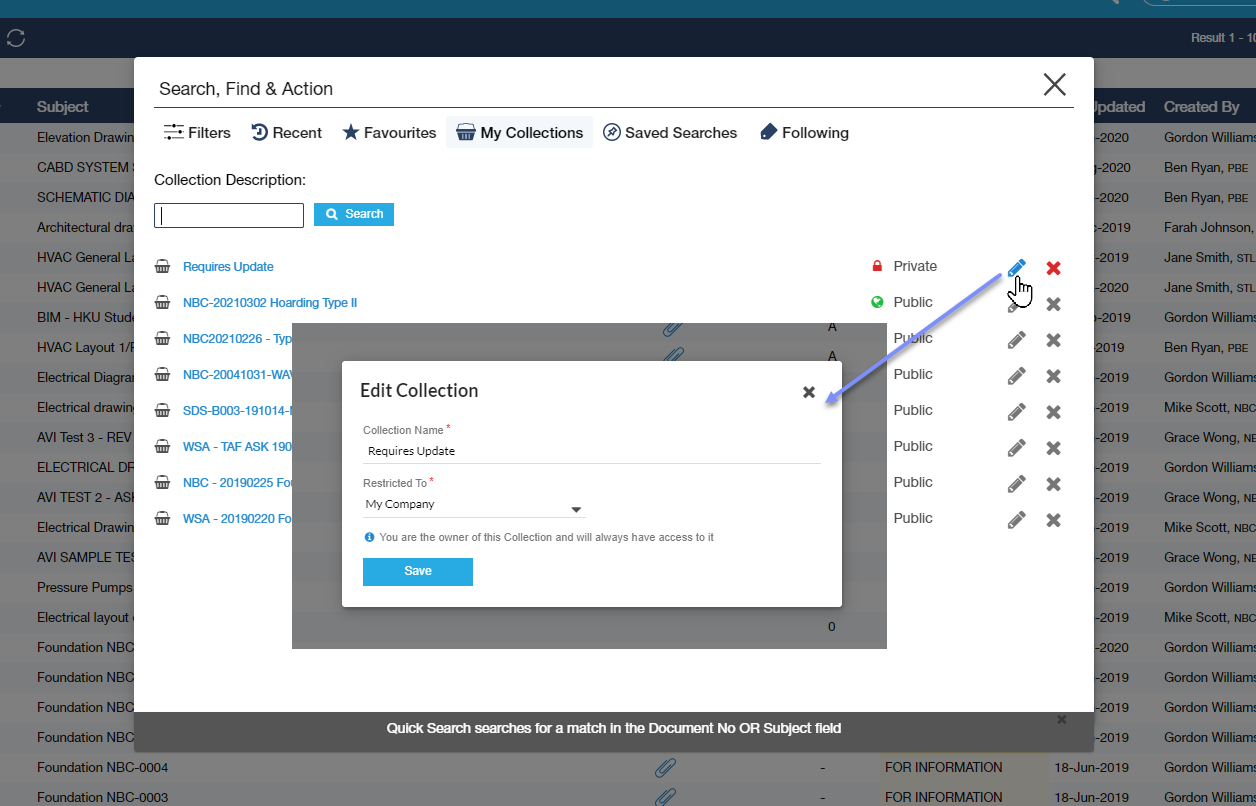
To edit the Collection Name and the Restricted To, click the edit icon (blue pen) beside the delete icon. Edit Collection pop-up screen will be opened; update the selected information and then save your changes. Only the User who created the Collection can edit the Collection label and Restricted To. |
How Do I Remove a Collection?
|
|---|
|
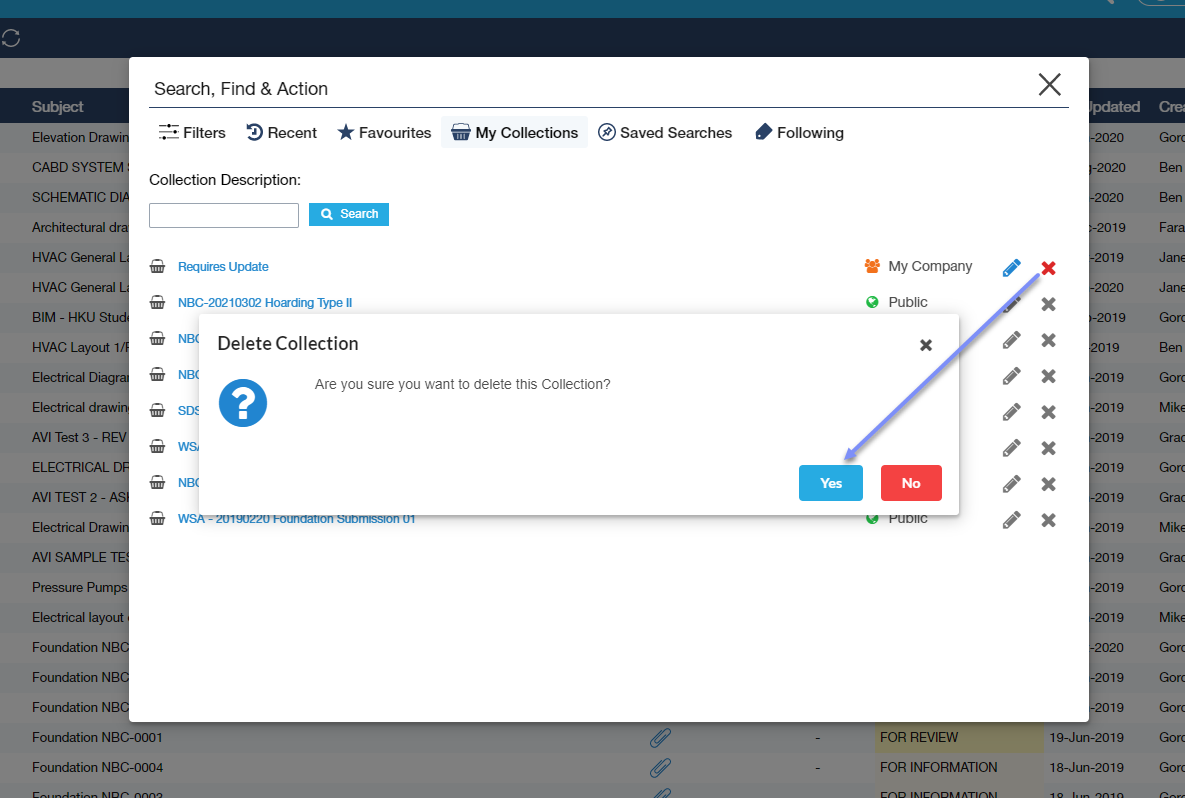
Delete a Collection from the list by selecting the red cross at the right-most side of the Collection row. A validation message will be presented; select Yes to confirm, else select No to cancel. Only the creator of the Collection can delete the Collection from the list. |
How Do I Save Search?
1. Enter Parameter under Filters Tab |
|---|
|
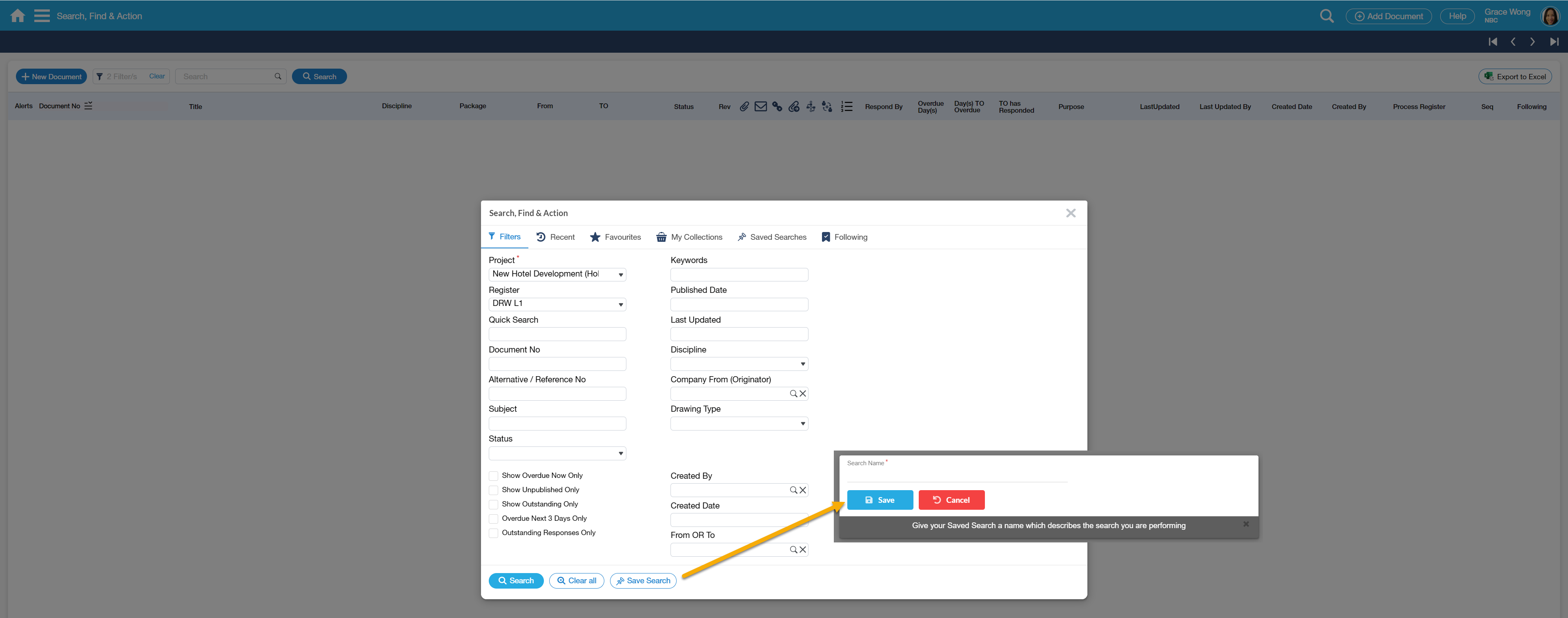
1. In order to save specific parameters, you should enter parameters under the filters tab then click the ‘Save Search’ button; a pop-up will appear. |
| 2. Enter the desired title or description for the save search on the pop-up. |
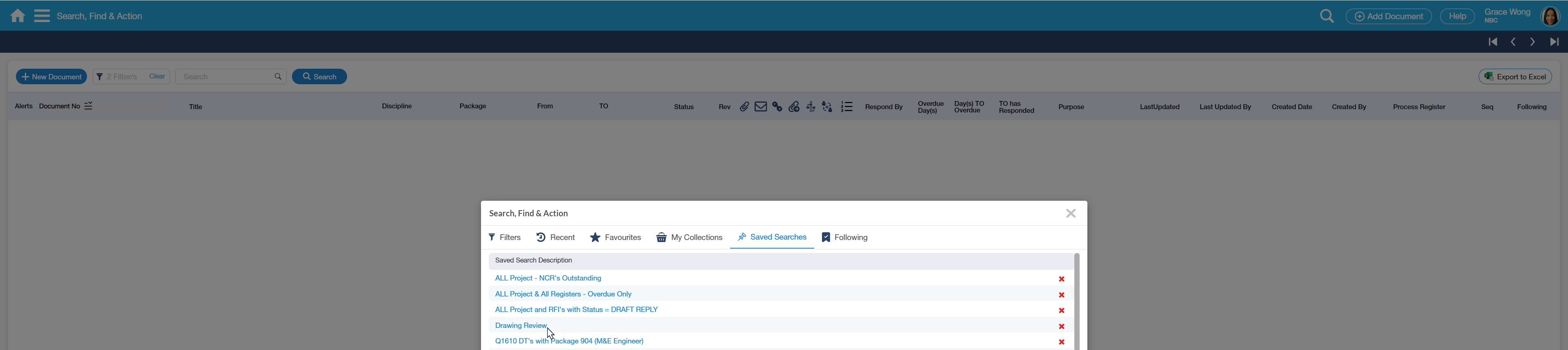
3. Click the Save button. The saved Search will now be added under the Saved Search Tab.
|
| Note: To delete a saved search, just select the red x icon of the corresponding Saved Search Description. |
How Do I Follow and Unfollow a Document?
A. Follow a Document |
|---|
|
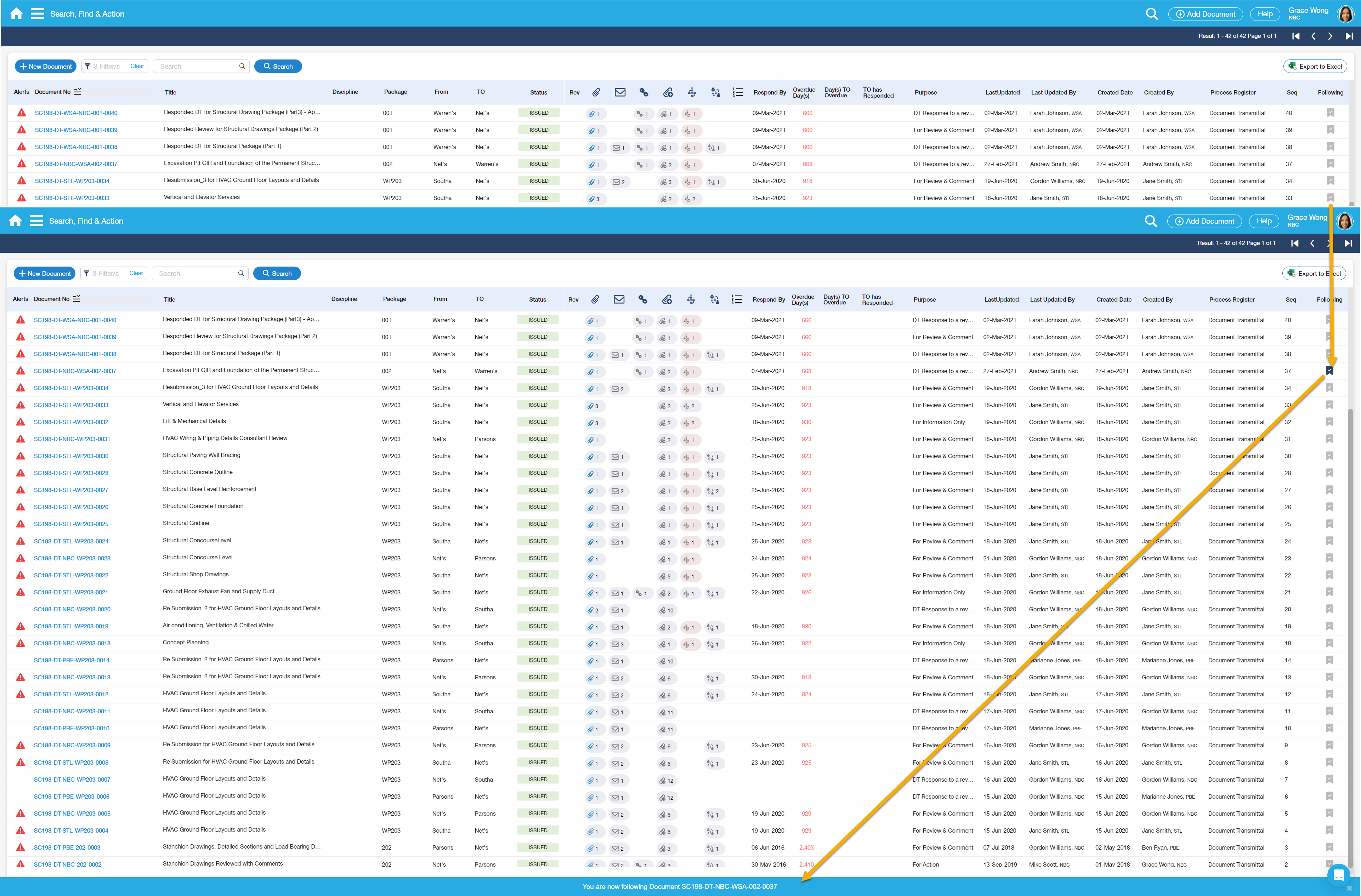
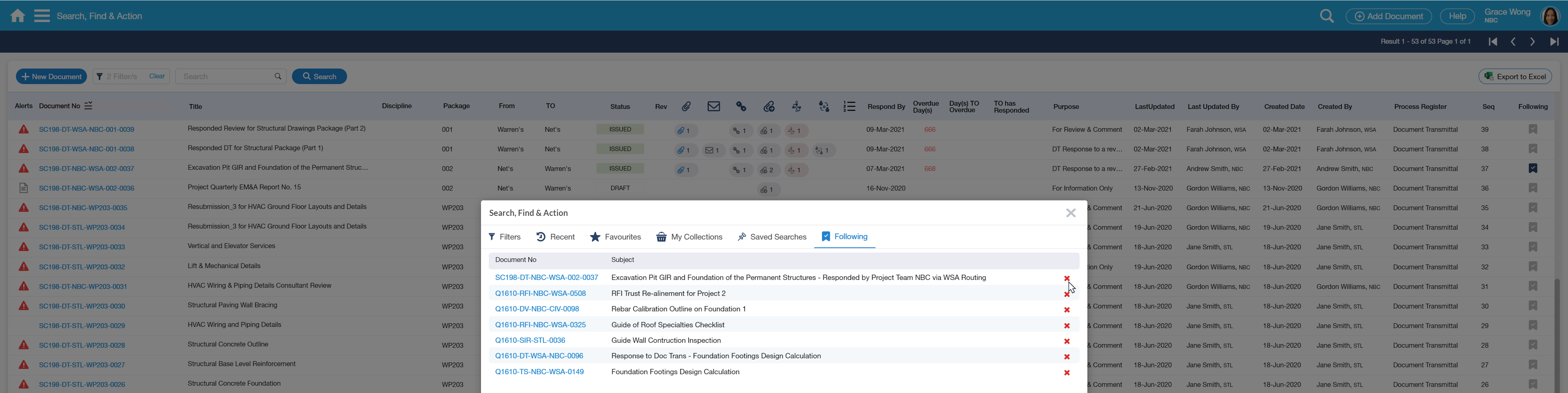
To 'Follow' a document, select the Tag icon beside the document in the Search Results, a message in the 'nag' will be displayed stating that 'You are now following Document xxx'. Upon selection, tag icon will appear green. The selected document(s) will now be displayed under the Following Tab. |
B. Unfollow a Document |
| There are two ways a Document can be 'unfollowed': |
|
| 1. To 'Unfollow' a document, select the red x icon under the Following tab; as the document is deleted from the list, the tag icon will return to charcoal color in Search Results page (after refreshing). |
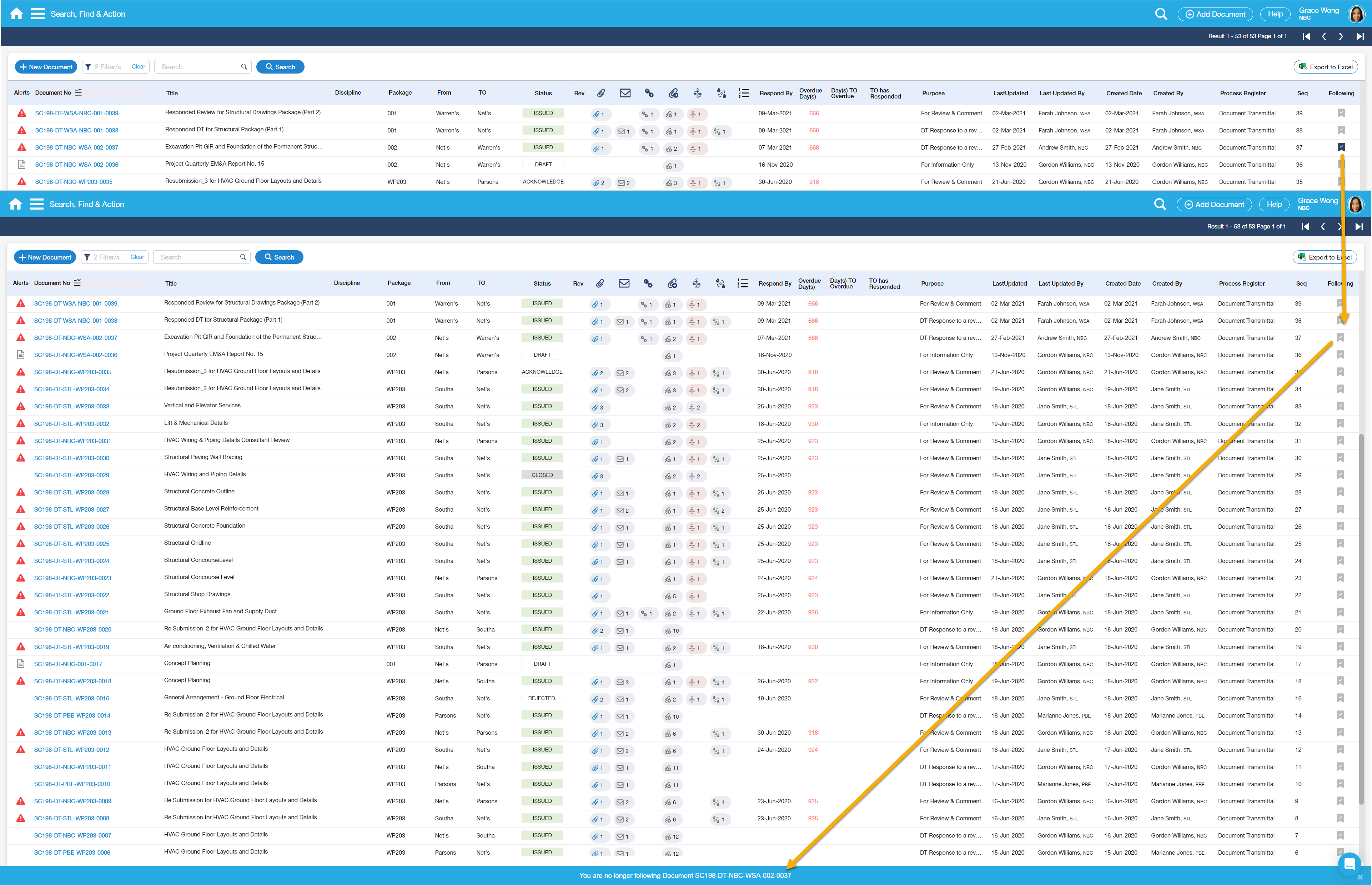
2. Another way to unfollow a Document is to click the green Tag Icon in Search Results page returning its colour back to charcoal and then a message in the 'nag' will be displayed stating that 'You are no longer following Document xxx'.
|
Examples of Use
<insert examples of use here>