
SFA - Search Find and Action
Contents
Overview
Search, Find & Action is essentially the main Search page. You have a range of Search options - but will only display search results for Documents where you have permission to access them.
Upon opening SF, you are presented with the main Search options page explained in detail in the following.
For full details on Search options, please go to the chapter - Search Filters Functionality.
From the Search Results page, you also create New Document(s), add Documents to 'My Collections', Follow / Unfollow Documents.
Note - Power Search is another option you may have access to depending on your security profile. Power search is more on context search. SF is focused on structured searches using the Register metadata.
Note - Today's Status (TS) and My Inbox (MI) provide the most direct access to Documents and Workflows that need your attention.
Screen Explanation
Search Filters
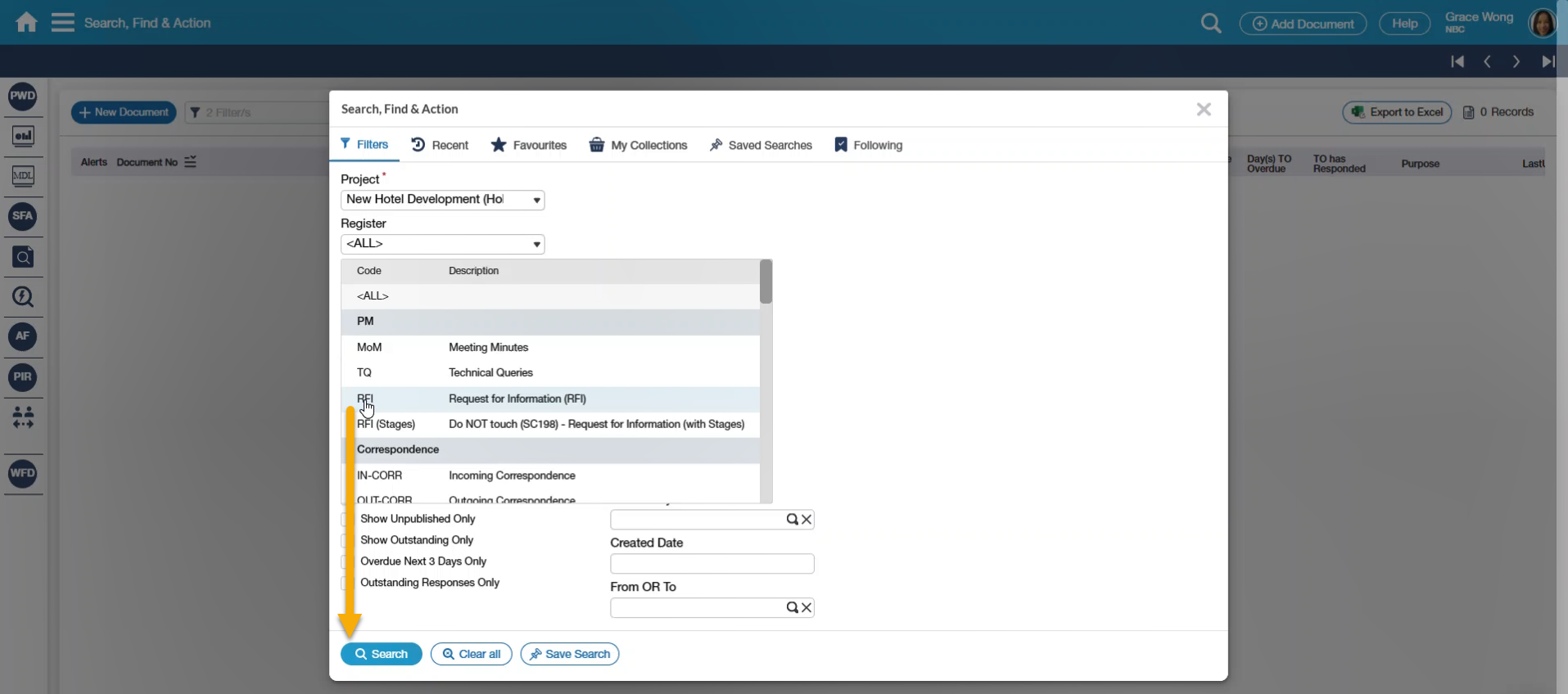
When you select the SF (Search, Find & Action) Menu Item on the Main Menu, you are presented with the Results Document Search page instantly followed by the Filters pop-up.
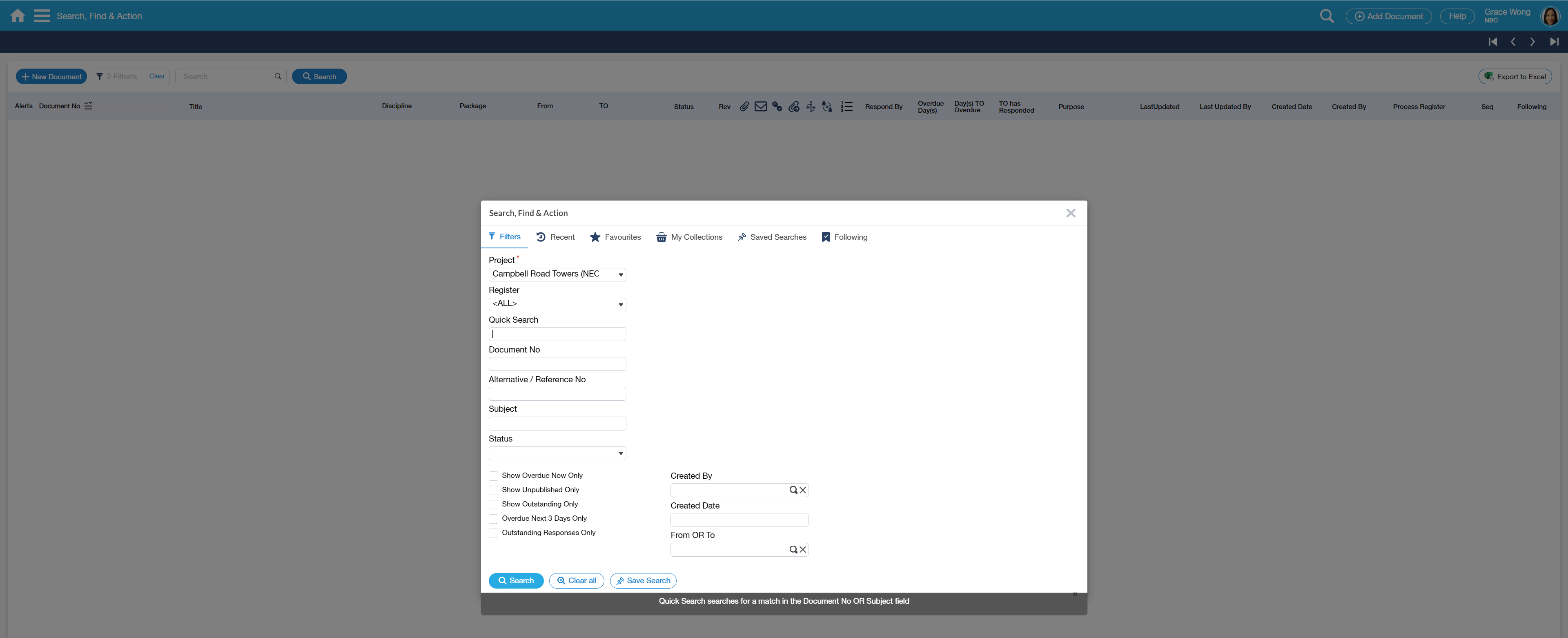
This page will be further explained in a separate link Search Filters Functionality.
Search Results
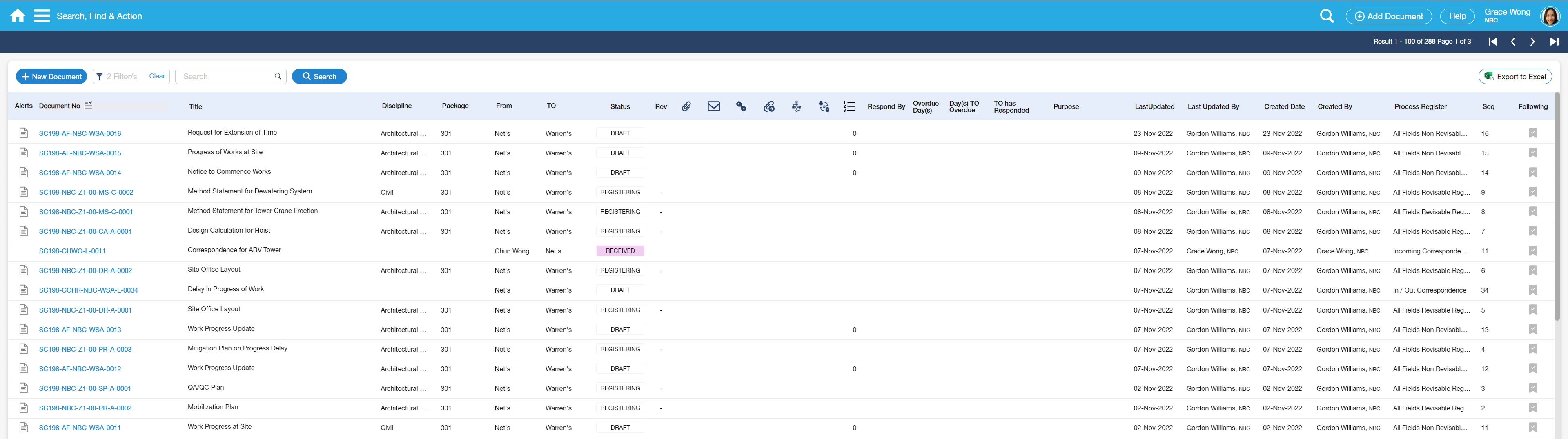
This page displays the search results based on what you have filtered.
Fields/Columns in Search Results
The nominated fields that are displayed in the Search Results Page are the following columns:

Field | Description |
|---|---|
Document No | Document Number for the registration. This has been manually entered by the User or system-generated depending on how the Register was configured. This column is a toggle - i.e. it can be changed to either Document No, Reference No, or Alternative No. |
Subject | The Subject or Title of the Document registration. Documents always contain a Subject. |
| Discipline | This is list of proper assignment of document in a register. |
| Package | This is list of packages awarded to a company to use in a project. |
| From | This is the originator user/company of the created document. |
| To | This is for the user/company recipient of the document. |
| Status | This is the 'current' Status of the Document. |
| Rev | The current Revision for the Document registration and the linked attachments. A Revision will only be displayed in the Document if the Register has been set as a 'Revisable Register' |
| Overdue Day(s) | This show count of how many days is already overdue. |
| Day(s) To Overdue | This show count overdue within 3 days. |
| To Has Responded | It will show |
| Respond by | This has a respond by date that indicate to a user required until when to response. |
| Purpose | This stand what is the |
| Last Updated | The last time the Document metadata was edited or updated in some manner. Note - Attachment upload, Conversation sent, Comments added, Workflow initiated, Routing created, Media added, and Cross-references created are not changes in metadata; these are activity changes thus will not be captured in the Last Updated column. |
| Created Date | This stand for when does the document is created |
| Created By | The User Name and Company that created the Document. |
Process Register | The Register the Document belongs to. |
| Seq | Unique Sequence No for the Document within the Register. This also shows you the chronological sequence of when the Document was created. |

Icons displayed in Search Results
There are two columns that display icons to indicate additional data, as follows:

Icon | Used |
|---|---|
1 - Icons related to the Search/Filters pop-up options | |
Alerts | Used as caution as what is the status of a document. This means the document in not yet Published. This means the document will become overdue within 3 days. This means the document is already past the respond by date. |
Following | This icon is used to follow or unfollow a Document. See also Search Filters Page. |
| 2 - Icons related to specific data loaded to the Document. If an Icon appears under the Header Icon, this indicates data of that type exists. | |
Paperclip Icon | This stands for Attachments |
Conversation Icon | This stands for a Conversation in a document. |
Chain Link Icon | This stands of count that is being Cross References from another document. |
Transmitted Icon | This stand of count for transmitted file. |
Workflow Icon | This stands of count for initiated/action Workflows that created. |
Routed Icon | This display counts of routed reviews created. |
Version Icon | This display what version is been created in register document. Note: Recent version created should always be seen in latest on top. |


Action Bar
The following Buttons, Field & Icons are placed on the Action Bar.

Option | Description |
|---|---|
Add Document | To add/create a new Document |
Search Filters Field | To open the Search/Filter Pop up screen |
| Search Field | The text field that searches for a specific Document(s). Enter partial text, press Enter (or Search Icon) |
| Search Button | To carry out the search process when using the quick Search |
| Export to Excel Button | Use to export the documents into Excel file. |
| Page Arrow buttons | To move forward on the next page or back in the previous page |
Search Results
When a search is completed, the results will be returned, showing 100 records per page. You can move through the results using the page arrows.
For example, If 'All' Registers are searched, the page will display all the documents of the Registers you have access to. The most recent document is displayed on top.
At the bottom of the page, a 'nag' appears containing a message regarding editable fields.
- Column Sorting
You can sort the search results by a particular column by selecting the column header. For a specific column, click the header once to sort ascending, then again to sort descending.
To sort by Document No, the left-most blank part of the Document No column.
How Do I?
How Do I Open the Search Filters Page?
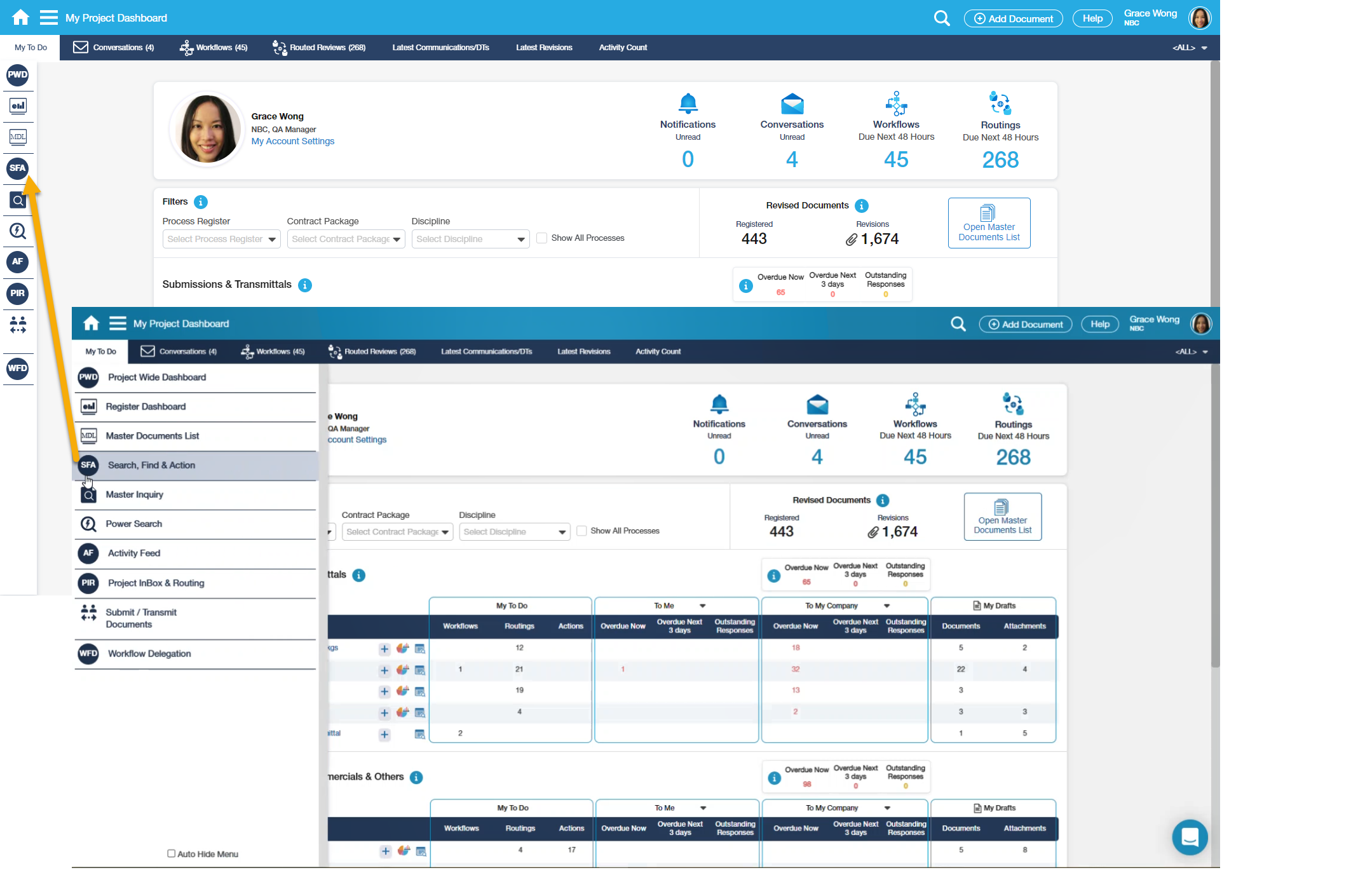
1. Select the SF Menu or the Search, Action & Find the label on the Left Hand Side |
|---|
|
To search/find a certain Document, Files, etc or do an Action for a Document or Workflow, you can select the SFA item (Search, Find & Action) to open the Search Filters page. Note - you can also click the Document hyperlink in My Project Dashboard or use the Vertical Menu for direct access to items needing your attention. |
2. Enter Filters and Search |
|
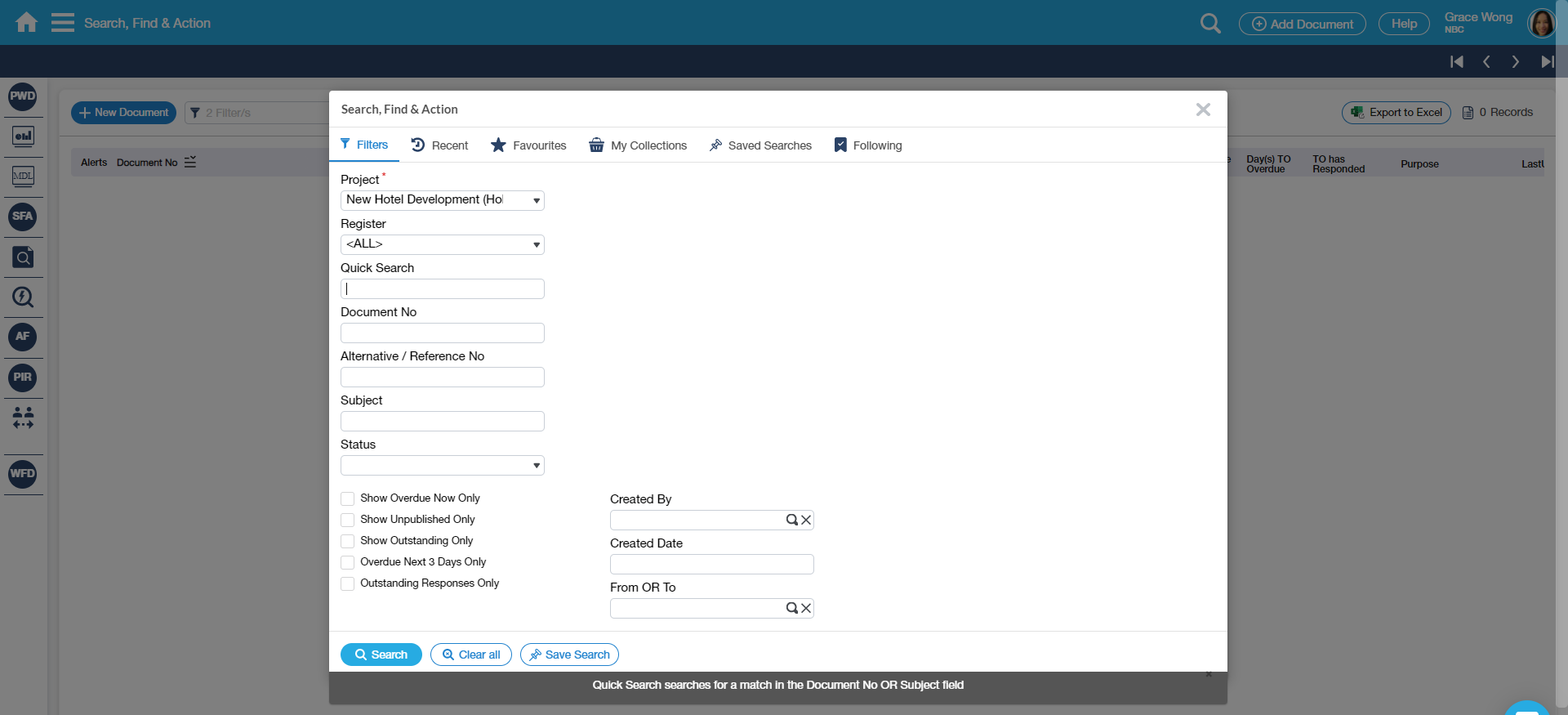
On the Search Filters screens, there are several fields that can be used to filter the search. Often times, the documents are filtered by Register (as shown above example). You can further filter by selecting a Status from the list, entering a Subject, the Document No itself; or part of the Quick Search. Once the desired filter(s) are entered, you can now click the Search button; the Searched Documents will then appear on the Results page. Note: There are added filter search functions available in the SFA screen to further refine the search result, provided you select first a Register: 1. Responsible Person, Raised By, Attention, Keywords filters (as configured per Register) 2. Multiple selections of Statuses 3. Date Fields 4. Global Lookups 5. Address Selector (To/From/Cc) Fields 6. Discipline 7. Code 1 to Code 5 Fields |
Examples of Use
<insert examples of use here>
Hint - When you need help locating a document, try using Power Search (please see PS - Power Search).